| id | major |
|---|---|
| 1 | Psychology |
| 2 | psychology |
| 3 | Psych |
| 4 | PSYCHOLOGY |
| 5 | Biology |
| 6 | biology |
| 7 | Bio |
Strings & Factors
PSY 410: Data Science for Psychology
Dr. Sara Weston
2026-05-11
The Power Play
Something new in the team challenge
The top 2 teams on the scoreboard right now get a one-time strategic choice:
Option A — Boost: Add +3 points to your own team’s total
Option B — Sabotage: Remove 2 points from each of two other teams of your choice
Choices are final. First place picks first.
Strings: The basics
How many majors are in this dataset?
How many majors are in this dataset?
R says 7. You meant 2.
The problem is inconsistent text — different cases, abbreviations, trailing spaces. Today we learn to fix that.
What are strings?
Strings are text data — anything in quotes:
The stringr package (part of tidyverse) gives you tools for working with strings. All stringr functions start with str_.
Creating and combining strings
[1] "JaneDoe"[1] "Jane Doe"String length
Changing case
messy_data <- c("PSYCHOLOGY", "Biology", "psychology", "BIOLOGY", "Psychology")

str_to_lower(messy_data)
[1] "psychology" "biology" "psychology" "biology" "psychology"[1] "PSYCHOLOGY" "BIOLOGY" "PSYCHOLOGY" "BIOLOGY" "PSYCHOLOGY"[1] "Psychology" "Biology" "Psychology" "Biology" "Psychology"Essential for cleaning survey data!
Trimming whitespace
Survey data often has extra spaces:
Psychology example: Cleaning survey responses
survey <- tibble(
  major = c("  Psychology", "BIOLOGY  ", "psychology", "Biology", "  sociology")
)

survey |>
  mutate(
    major_clean = str_to_lower(str_trim(major))
  )
# A tibble: 5 × 2
major major_clean
<chr> <chr>
1 " Psychology" psychology
2 "BIOLOGY " biology
3 "psychology" psychology
4 "Biology" biology
5 " sociology" sociology Detecting patterns
str_detect() checks if a pattern is present:
Detecting patterns in filter()
str_detect() returns TRUE/FALSE — exactly what filter() needs:
Case-insensitive detection
Patterns are case-sensitive by default:
Replacing text
Open-ended responses often have repeated words:
responses <- c(
  "very very tired",
  "very stressed and very anxious",
  "I felt fine"
)

# Replace the first match in each string
str_replace(responses, "very", "extremely")
[1] "extremely very tired" "extremely stressed and very anxious"
[3] "I felt fine" [1] "extremely extremely tired"
[2] "extremely stressed and extremely anxious"
[3] "I felt fine" Multiple replacements
Imagine clinical notes with diagnosis abbreviations scattered inside the text:
Multiple replacements
Pass a named vector to str_replace_all() to expand them wherever they appear:
str_replace_all(notes, c(
  "MDD" = "Major Depressive Disorder",
  "GAD" = "Generalized Anxiety Disorder",
  "OCD" = "Obsessive-Compulsive Disorder"
))
[1] "Patient presented with Major Depressive Disorder symptoms"
[2] "Differential: Major Depressive Disorder vs Generalized Anxiety Disorder"
[3] "Family history of Obsessive-Compulsive Disorder and Generalized Anxiety Disorder"Extracting parts of strings
When you need more: Regular expressions
Regular expressions (regex) are powerful pattern matching tools.
Examples:
\\dmatches digits\\smatches whitespace.matches any character+means “one or more”*means “zero or more”
Note
Regex is powerful but complex. For this course, stick to simple patterns. When you need more, check R4DS Ch 14 or regex101.com.
Pair coding break
Your turn: Clean text data
You have messy survey responses:
Your turn: Clean text data
- Clean
majorto lowercase with no extra spaces - Clean
commentto title case with no extra spaces - Create a logical column
is_negativethat isTRUEif the comment contains “long” or “confusing” (case-insensitive) - Filter to only negative comments
Time: 10 minutes
Solution: Clean text data
messy_survey |>
  mutate(
    # clean up major variable
    major = str_to_lower(major),
    major = str_trim(major),
    # clean up comment variable
    comment = str_trim(comment),
    comment = str_to_title(comment),
    # make is_neg column
    is_negative = str_detect(comment, "Long") | str_detect(comment, "Confusing"),
    is_negative = str_detect(comment, regex("long", ignore_case = T)) |
      str_detect(comment, regex("confusing", ignore_case = T))
  ) |>
  filter(is_negative)
Factors
What are factors?
Factors are R’s way of representing categorical data with a fixed set of possible values.
Notice the Levels line — those are the possible categories.
Why use factors?
- Memory efficient — R stores categories once, not repeatedly
- Prevent typos — Can’t accidentally add invalid categories
- Control order — Specify the order for plots and tables
- Model requirements — Many statistical models require factors
Creating factors
Order matters!
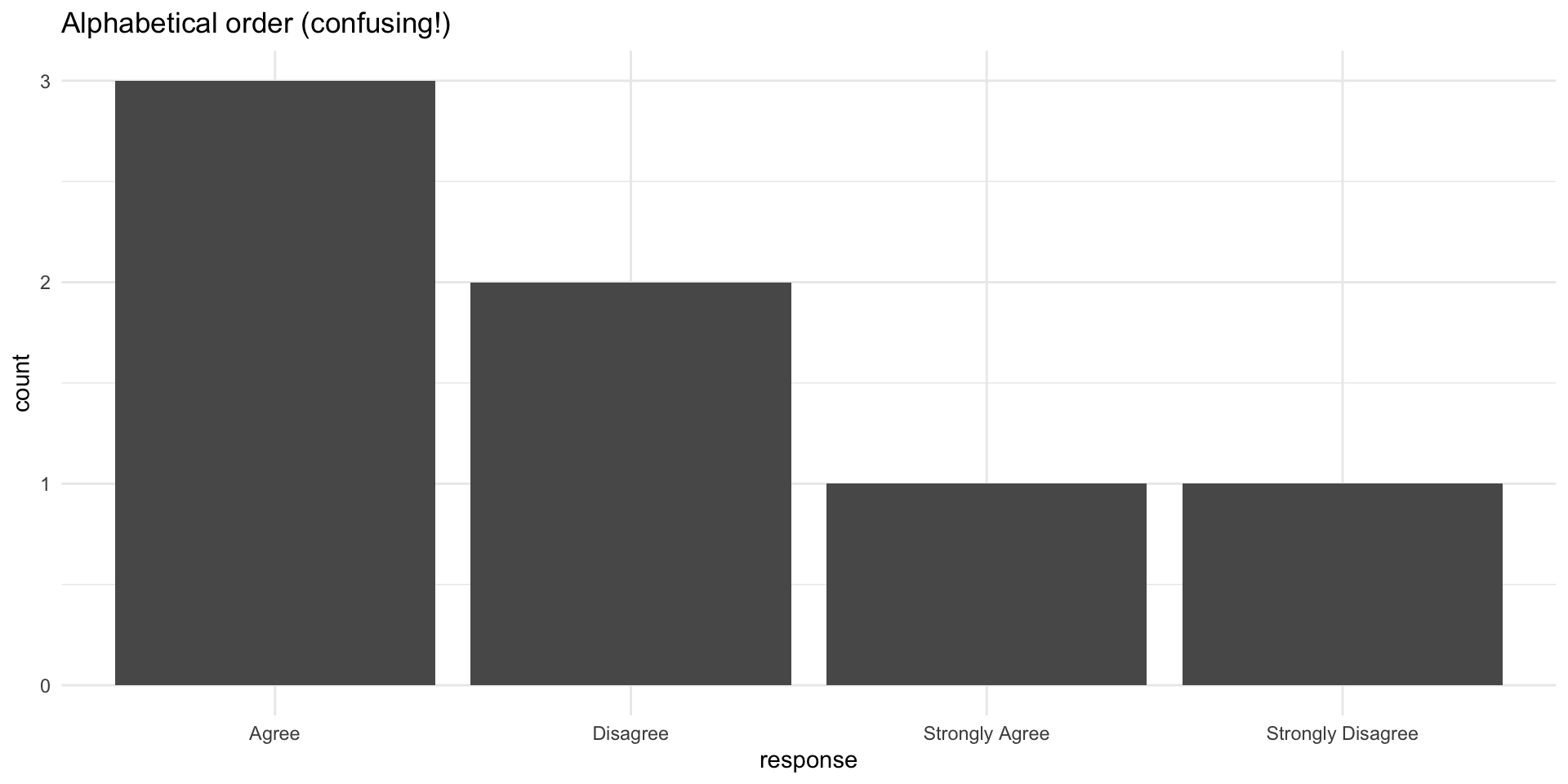
Why order matters: Example
Why order matters: Example
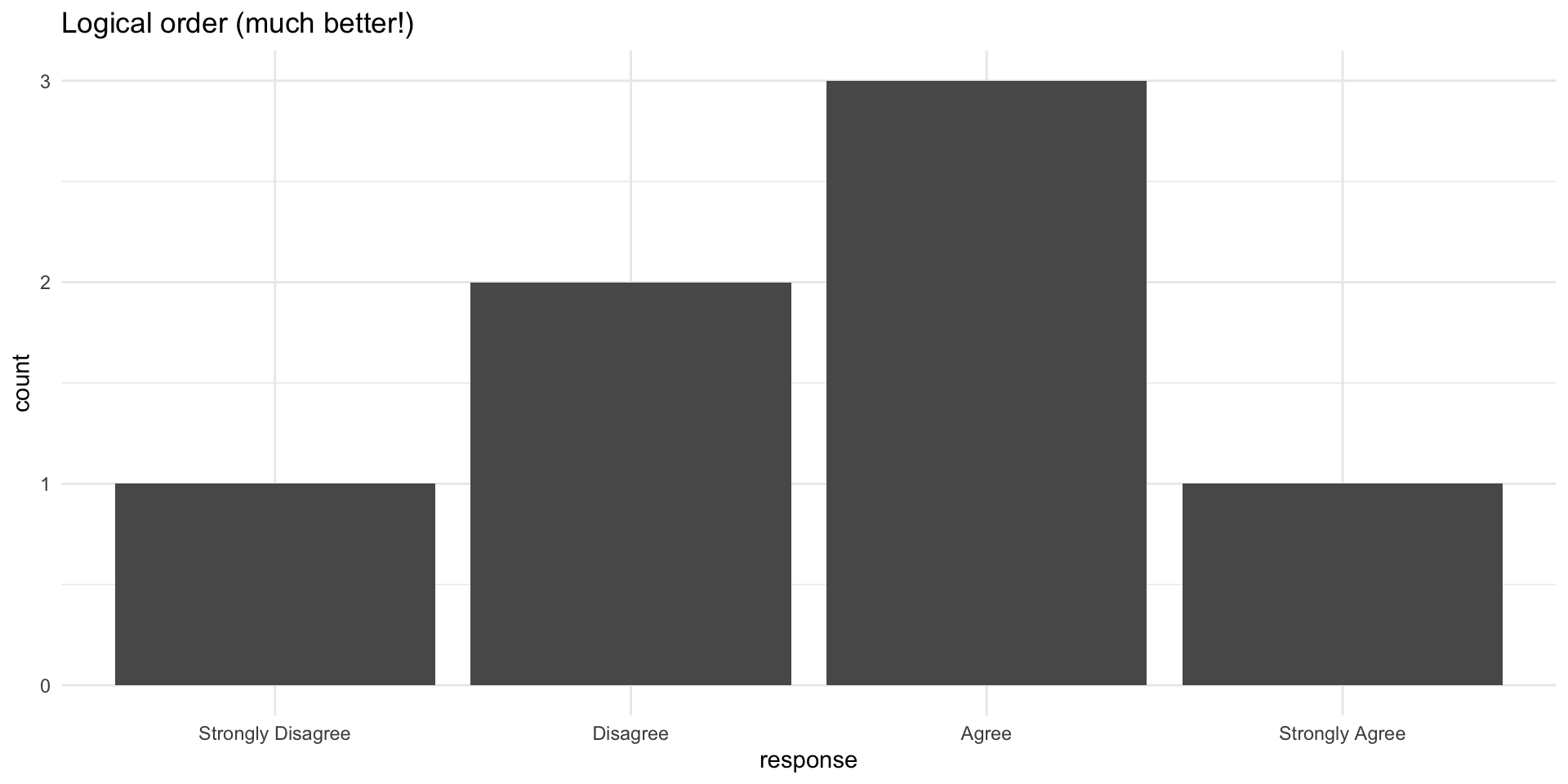
Fixed with factor ordering
Fixed with factor ordering
Forcats: Factor tools
The forcats package (part of tidyverse) provides functions for working with factors.
All forcats functions start with fct_.
Key functions:
fct_relevel()— manually reorder levelsfct_reorder()— reorder by another variablefct_infreq()— order by frequencyfct_recode()— rename levelsfct_collapse()— combine levels
fct_relevel(): Manual reordering
[1] High School Bachelor's  Master's    High School
Levels: Bachelor's High School Master'sfct_reorder(): Order by another variable
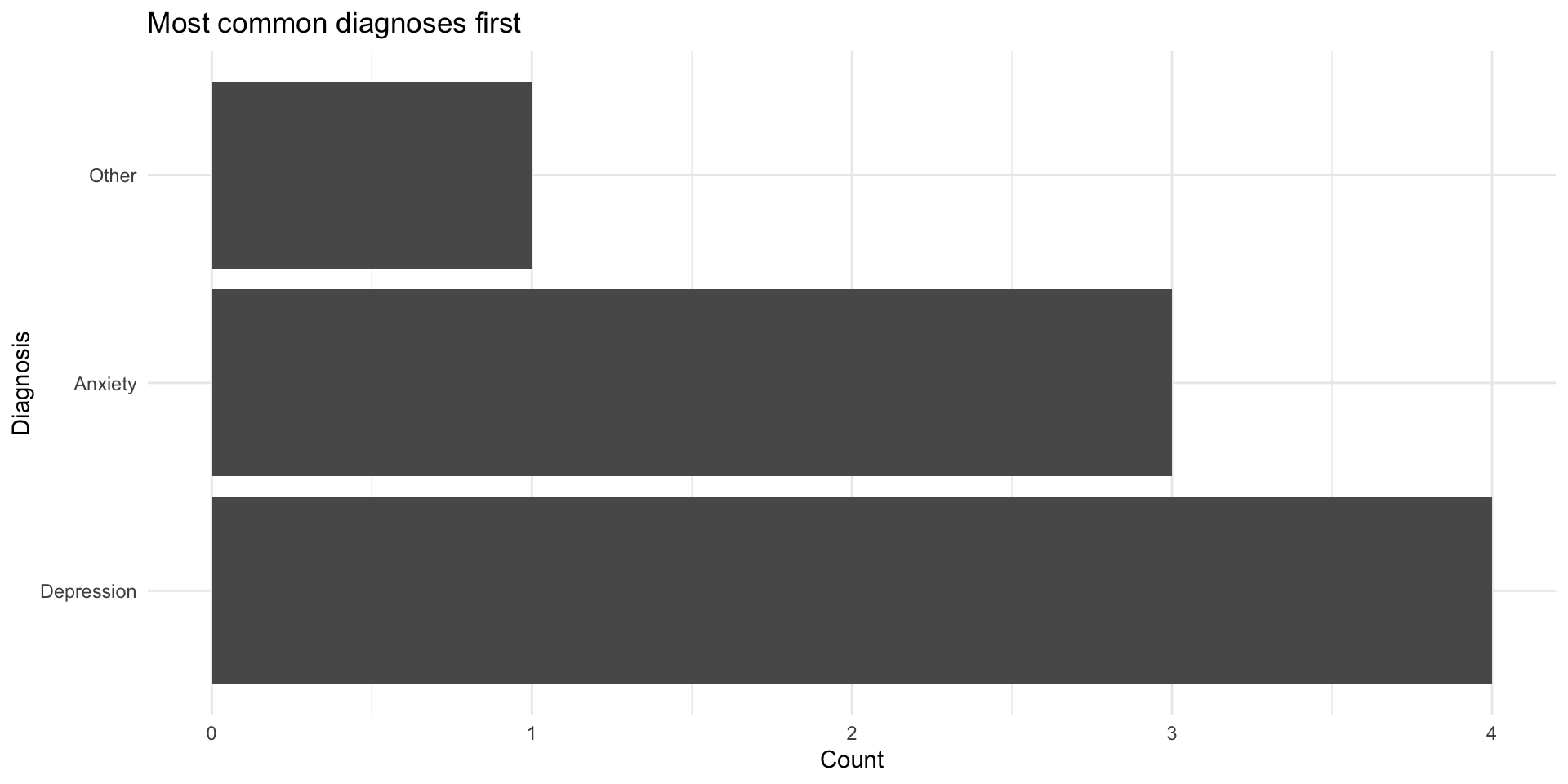
Extremely useful for plots!
fct_reorder() in action
fct_reorder() in action
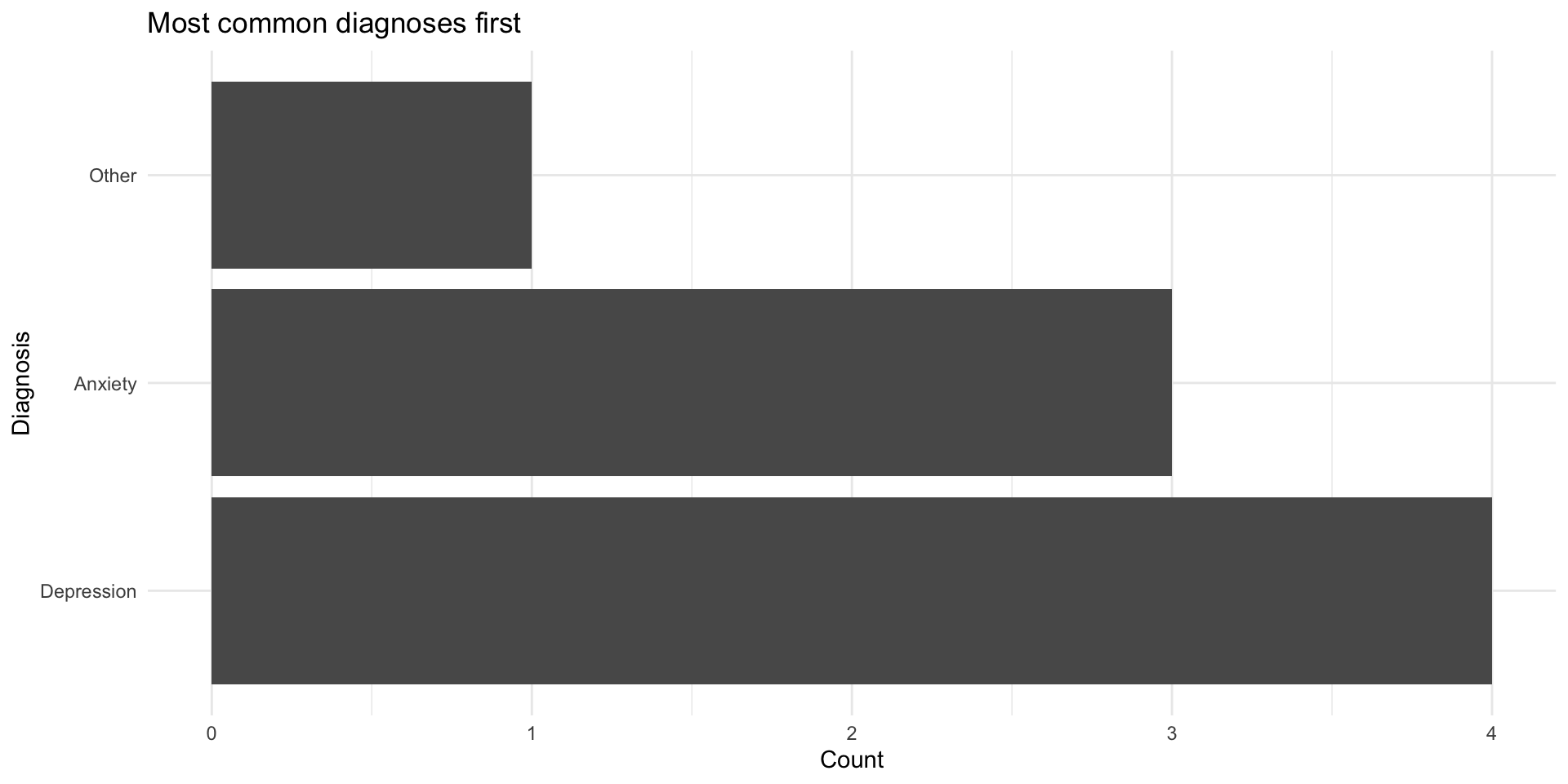
fct_infreq(): Order by frequency
fct_infreq() in plots
fct_infreq() in plots
fct_recode(): Rename levels
fct_collapse(): Combine levels
Useful for grouping rare categories:
diagnosis <- factor(c("MDD", "GAD", "OCD", "PTSD", "Panic Disorder",
                      "MDD", "GAD", "Social Anxiety"))

fct_collapse(diagnosis,
  Depression = "MDD",
  Anxiety = c("GAD", "OCD", "PTSD", "Panic Disorder", "Social Anxiety")
)
[1] Depression Anxiety Anxiety Anxiety Anxiety Depression Anxiety
[8] Anxiety
Levels: Anxiety DepressionPsychology example: Recoding demographics
Recoding demographics
demo_data |>
  mutate(
    age_group = factor(age_group, levels = c("18-25", "26-35", "36-45", "46+")),
    education = fct_recode(factor(education),
      "High School" = "HS",
      "Bachelor's"  = "BA",
      "Master's"    = "MA",
      "Doctorate"   = "PhD"
    )
  )
# A tibble: 6 × 2
age_group education
<fct> <fct>
1 18-25 High School
2 26-35 Bachelor's
3 18-25 Bachelor's
4 36-45 Master's
5 26-35 High School
6 46+ Doctorate Dropping unused levels
After filtering, factors keep old levels:
Common factor issues
Problem 1: Factors created from numbers
Common factor issues
Problem 2: Factors behave differently than strings
colors <- factor(c("red", "blue"))

# Can't just add new values
colors[3] <- "green"  # This creates NA!
colors
[1] red blue <NA>
Levels: blue redSolution: Convert to character first, or use fct_expand() to add levels.
Light text analysis
What did you say about data?
On the class survey, you described your relationship with data in 1–2 words. Let’s see what you said.
Tokenizing text with tidytext
unnest_tokens() splits text into individual words:
# A tibble: 77 × 1
   word
   <chr>
 1 frustrating
 2 and
 3 overwhelming
 4 novel
 5 novice
 6 hopeful
 7 work
 8 in
 9 progress
10 big
# ℹ 67 more rows
Each row is now a single word.
Words alone aren’t enough
# A tibble: 5 × 2
  word            n
  <chr>       <int>
1 complicated     2
2 curious         2
3 love            2
4 adjacent        1
5 barely          1
Most words appeared just once. Counting alone won’t tell us much.
But every word carries a feeling — positive, negative, neutral. Can we measure that?
How does our class feel about data?
tidytext ships with the Bing lexicon — ~6,800 English words tagged positive or negative. We can inner_join() to keep only the words our class used and the lexicon recognized.
words |>
  inner_join(get_sentiments("bing"), by = "word") |>
  count(sentiment) |>
  ggplot(aes(x = sentiment, y = n, fill = sentiment)) +
  geom_col() +
  scale_fill_manual(values = c("negative" = "#c0392b", "positive" = "#27ae60")) +
  labs(
    title = "How our class feels about data",
    x = NULL, y = "Words"
  ) +
  theme_minimal(base_size = 14) +
theme(legend.position = "none")How does our class feel about data?
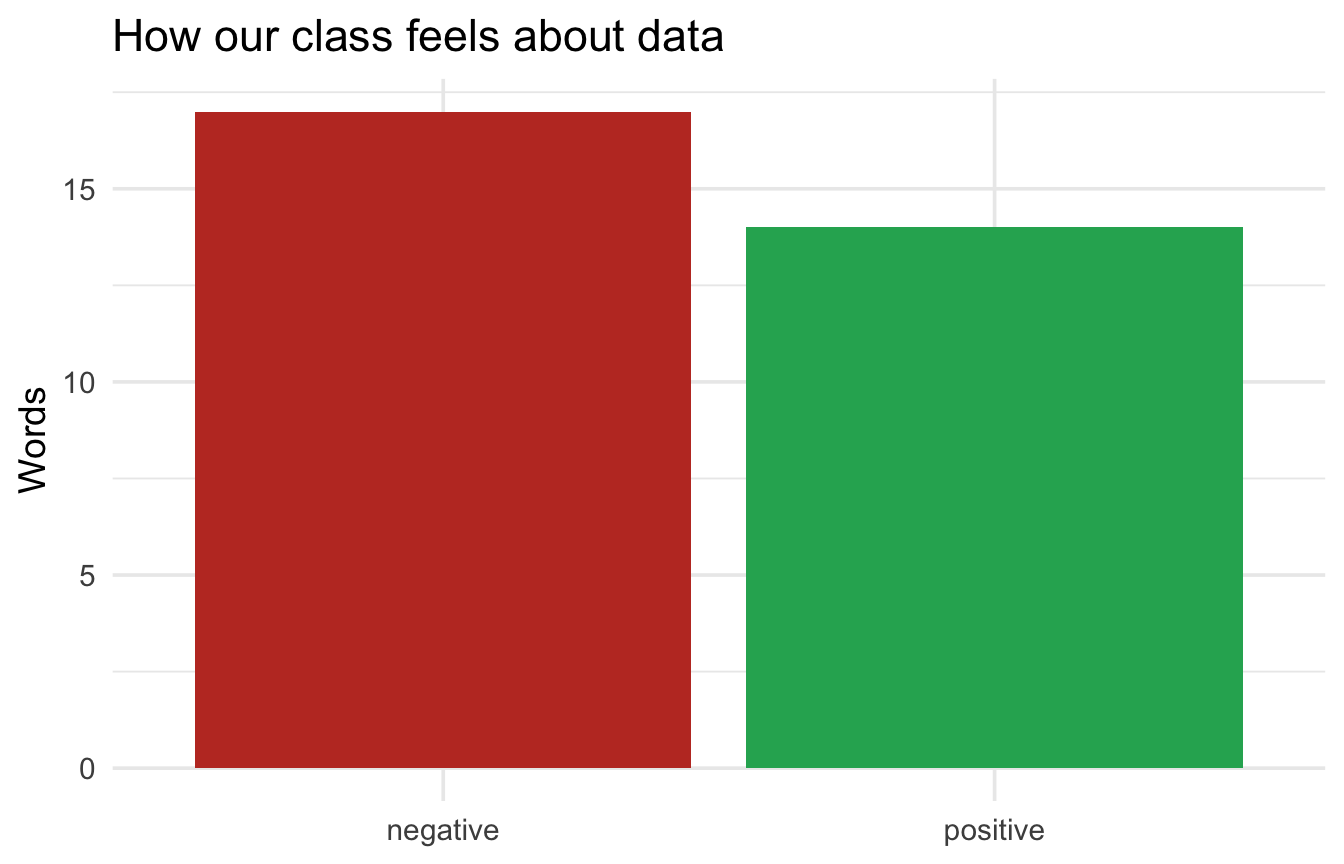
Which words drove the score?
# A tibble: 26 × 3
   word        sentiment     n
   <chr>       <chr>     <int>
 1 good        positive      3
 2 complicated negative      2
 3 interesting positive      2
 4 love        positive      2
 5 brutal      negative      1
 6 confused    negative      1
 7 derogatory  negative      1
 8 difficult   negative      1
 9 frustrating negative      1
10 fun         positive      1
# ℹ 16 more rows
Read carefully — did the lexicon get every word right?
Where did “good” actually come from?
unnest_tokens(..., drop = FALSE) keeps the source phrase so we can spot-check:
class_survey |>
  select(data_words) |>
  unnest_tokens(word, data_words, drop = FALSE) |>
  inner_join(get_sentiments("bing"), by = "word") |>
  filter(word %in% c("good", "great", "love")) |>
  mutate(data_words = str_trunc(data_words, 35))
# A tibble: 6 × 3
data_words word sentiment
<chr> <chr> <chr>
1 unrequited love love positive
2 not great great positive
3 not good good positive
4 i have never coded before and it... good positive
5 good good positive
6 love-hate love positive Out of 8 “scored” tokens, the lexicon got one right.
End-of-deck exercise
Practice: Clean and visualize survey data
You have messy Likert scale data:
- Clean the
responsevariable to title case - Convert
responseto a factor with logical ordering - Create a bar chart showing response counts for each question
- Use
facet_wrap()to make separate panels for each question - Bonus: Use
fct_infreq()to order responses by overall frequency - A6 preview — given an
open_responsestibble with aresponsecolumn, tokenize it and find the most common non-stopwords:
Solution: Clean and visualize survey data
likert_data_clean <- likert_data |>
  mutate(
    # Clean to title case
    response = str_to_title(response),

    # Convert to factor with logical order
    response = factor(response, levels = c(
      "Strongly Disagree", "Disagree", "Neutral", "Agree", "Strongly Agree"
    ))
  )

# Basic plot with facets
ggplot(likert_data_clean, aes(x = response)) +
  geom_bar() +
  facet_wrap(~question) +
  labs(title = "Survey responses by question",
       x = "Response", y = "Count") +
  theme_minimal() +
  theme(axis.text.x = element_text(angle = 45, hjust = 1))

# Bonus: order by frequency
likert_data_clean |>
  mutate(response = fct_infreq(response)) |>
  ggplot(aes(x = response)) +
  geom_bar() +
  facet_wrap(~question) +
  theme_minimal() +
  theme(axis.text.x = element_text(angle = 45, hjust = 1))
Wrapping up
String functions cheat sheet
| Function | Purpose |
|---|---|
str_c() |
Combine strings |
str_length() |
Get string length |
str_to_lower(), str_to_upper() |
Change case |
str_trim(), str_squish() |
Remove whitespace |
str_detect() |
Find pattern |
str_replace(), str_replace_all() |
Replace pattern |
str_sub() |
Extract substring |
Factor functions cheat sheet
| Function | Purpose |
|---|---|
factor() |
Create a factor |
fct_relevel() |
Manually reorder levels |
fct_reorder() |
Order by another variable |
fct_infreq() |
Order by frequency |
fct_recode() |
Rename levels |
fct_collapse() |
Combine levels |
fct_drop() |
Remove unused levels |
Key takeaways
- Strings are text — use
stringr::str_*()functions to manipulate - Always clean string data — case, whitespace, typos
- Factors are categorical data with fixed levels
- Factor order matters for plots and tables
- Use forcats (
fct_*()) to manipulate factors - Order factors logically — not alphabetically
- When in doubt, check the data type with
class()orglimpse()
Before next class
📖 Read:
- R4DS Ch 18: Missing values
✅ Do:
- Start Assignment 6
- Check your final project data for string/factor issues
- Practice cleaning demographic variables
The one thing to remember
Messy categories turn into messy results. str_to_lower() and factor() are your first line of defense.
See you Wednesday for missing data!
PSY 410 | Session 13