Layers & Aesthetics

PSY 410: Data Science for Psychology

Dr. Sara Weston

2026-04-20

Choosing the right geom

Same data, two stories

Side-by-side comparison of two plots using the same reaction time data. Version A is a plain bar chart of means that hides all variation. Version B overlays jittered individual data points, boxplots, and mean diamonds, revealing the full spread and overlap between Control and Treatment groups.

Both use the same data. The difference is layers — and the right layers tell the right story.

The wrong geom doesn’t just look bad — it can actively mislead.

Geom selection guide

Your data Good geom Avoid
One continuous variable geom_histogram(), geom_density() geom_bar()
One categorical variable geom_bar() geom_histogram()
Two continuous geom_point(), geom_smooth()
One continuous + one categorical geom_boxplot(), geom_violin() pie charts
Two categorical geom_count(), geom_tile()
Change over time geom_line() geom_point() alone

One variable: distributions

reaction_data |>
  ggplot(aes(x = rt)) +
  geom_histogram(
    binwidth = 30, 
    fill = "steelblue", 
    color = "white") +
  labs(
    title = "Distribution of Reaction Times",
    x = "Reaction time (ms)"
  ) +
  theme_minimal(base_size = 14)

One variable: distributions

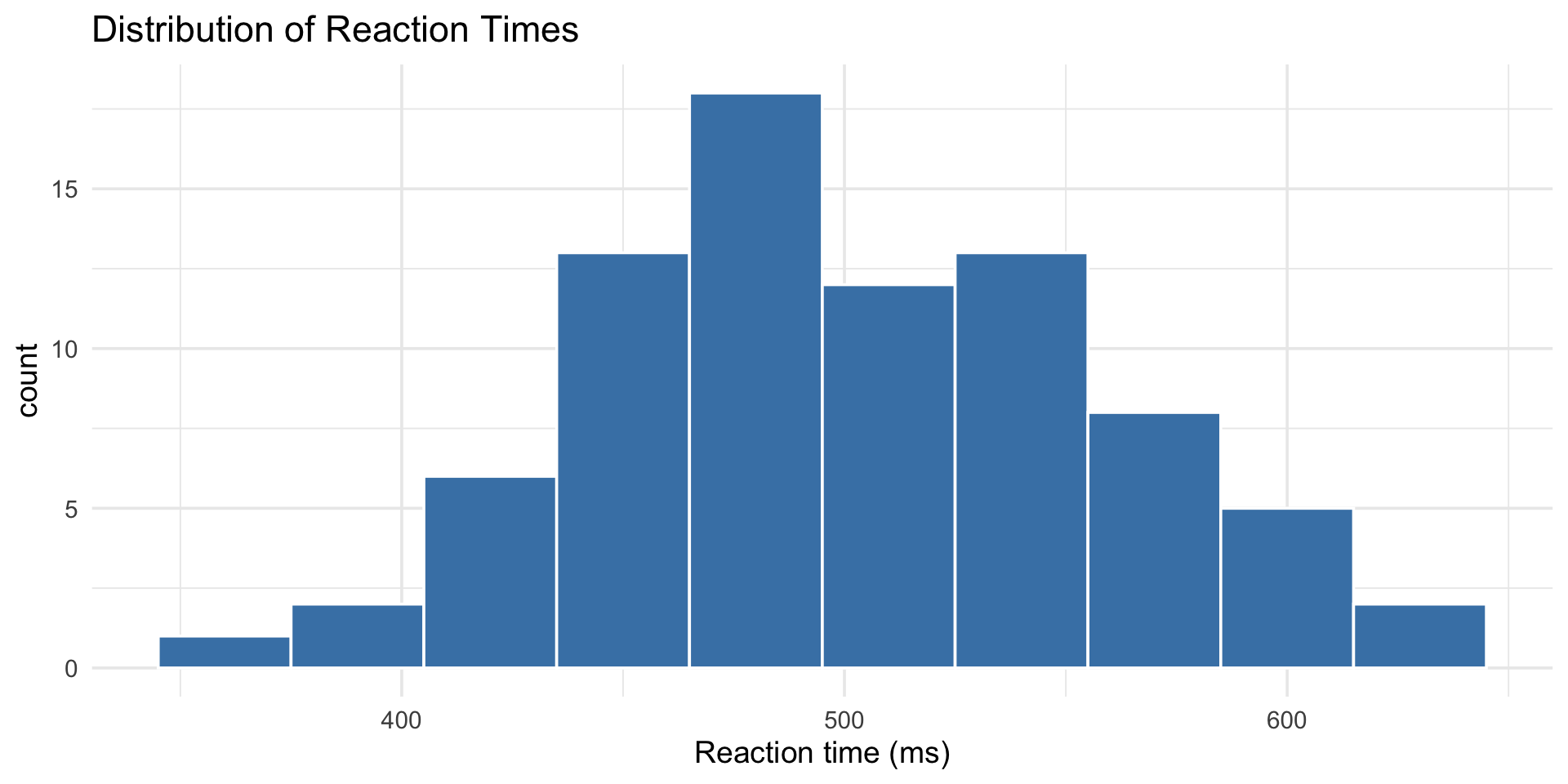
Histogram of reaction times in milliseconds with 30ms bins, showing an approximately normal distribution centered around 500ms with a slight right skew.

histogram vs density

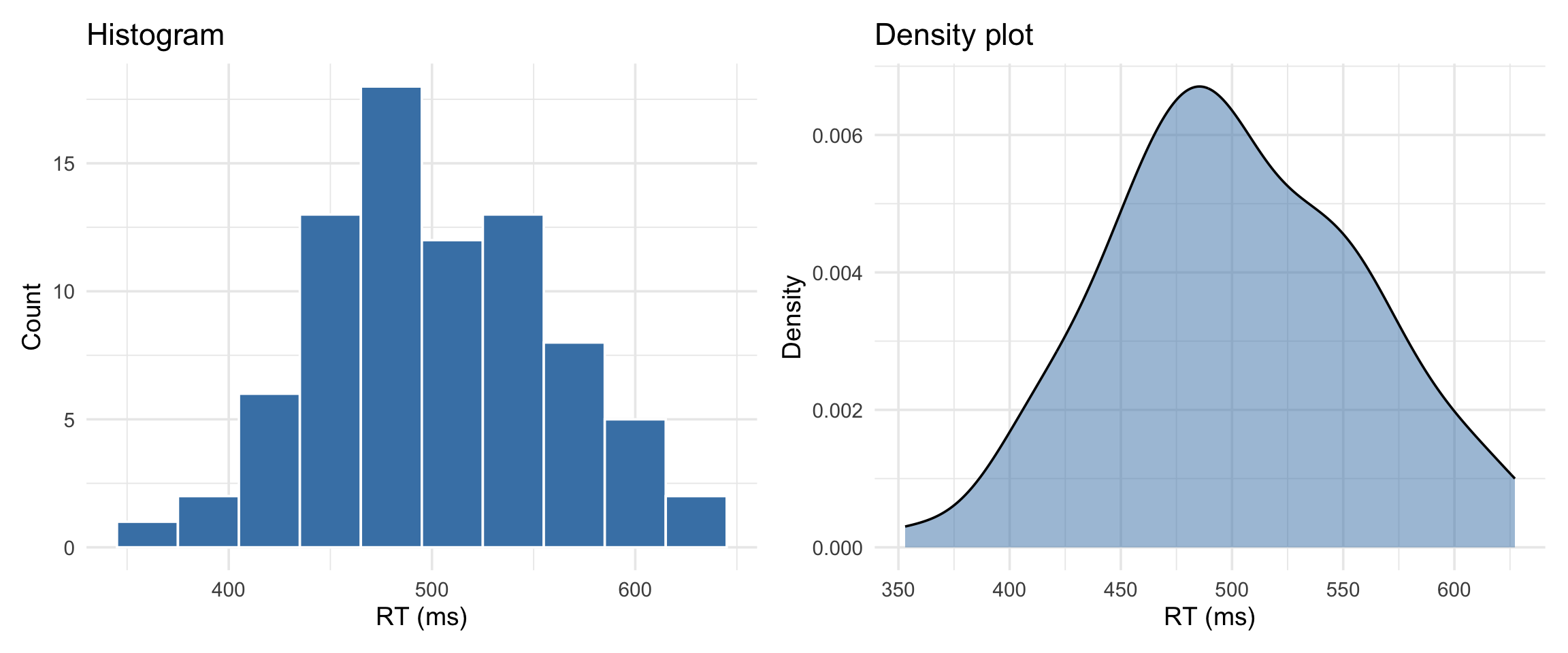
Side-by-side comparison of a histogram and density plot of reaction times. The histogram shows discrete count bins while the density plot shows a smooth continuous curve, both revealing a similar roughly normal distribution.

Histogram = actual counts. Density = smoothed estimate of the shape.

One categorical variable
reaction_data |>
  ggplot(aes(x = condition)) +
  geom_bar(fill = "steelblue") +
  labs(
    title = "Observations per Condition",
    x = "Condition",
    y = "Count"
  ) +
  theme_minimal(base_size = 14)

One categorical variable

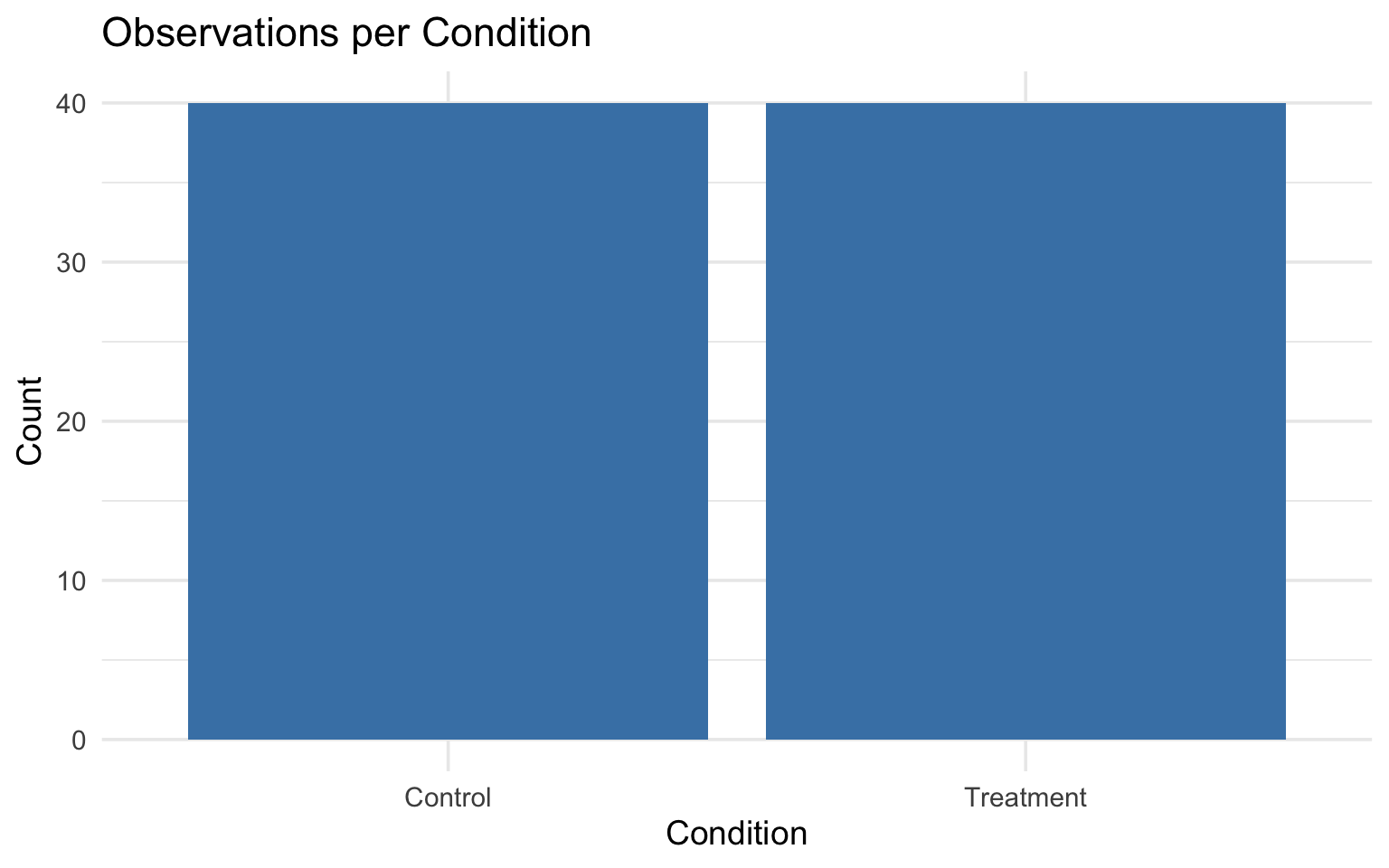
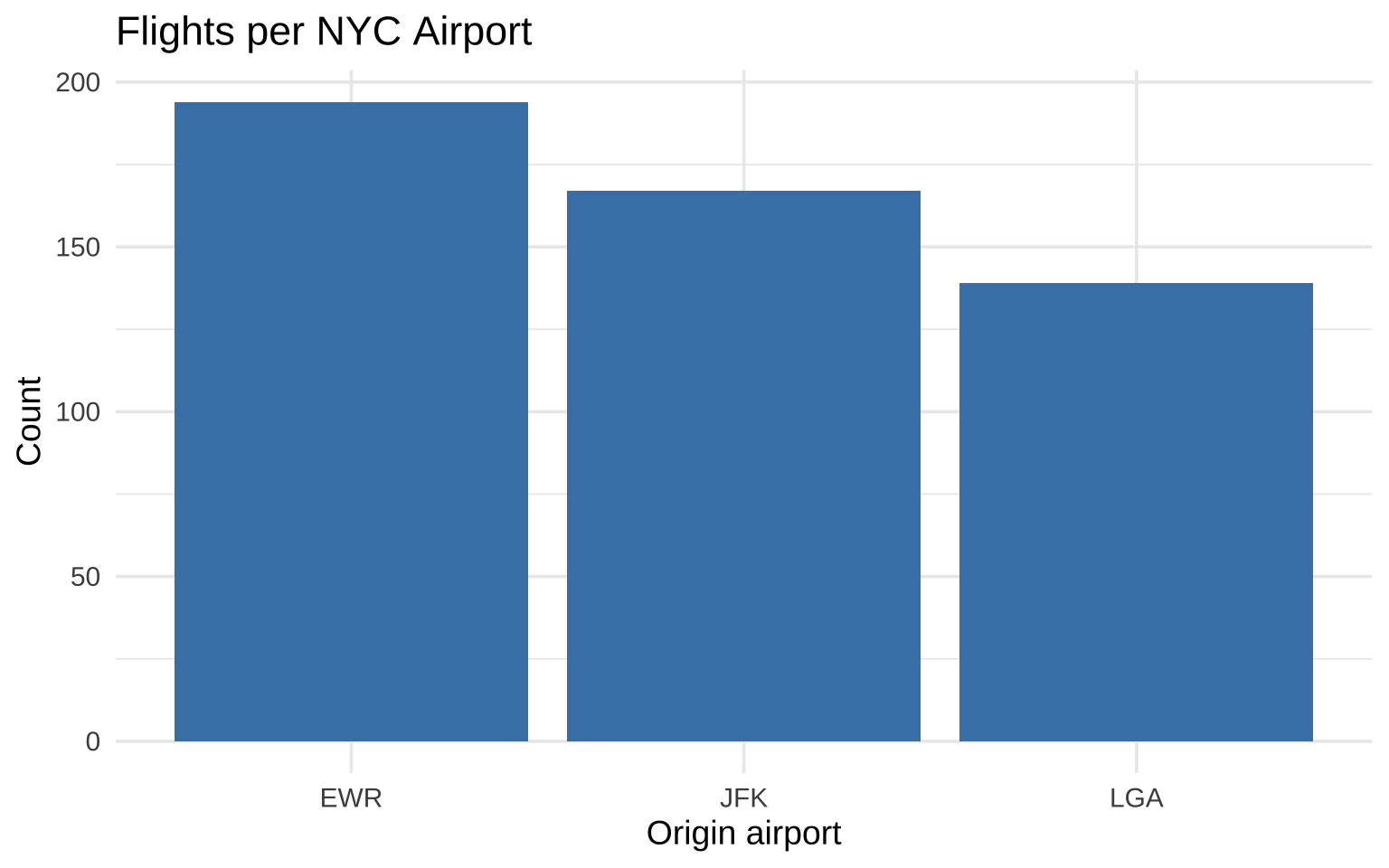
Bar chart showing the count of observations in each experimental condition, with Control and Treatment groups having equal counts of 40 each.

One continuous + one categorical

reaction_data |>
  ggplot(aes(x = condition, y = rt, fill = condition)) +
  geom_boxplot(alpha = 0.7) +
  labs(
    title = "Reaction Time by Condition",
    x = "Condition",
    y = "Reaction time (ms)"
  ) +
  theme_minimal(base_size = 14) +
  theme(legend.position = "none")

One continuous + one categorical

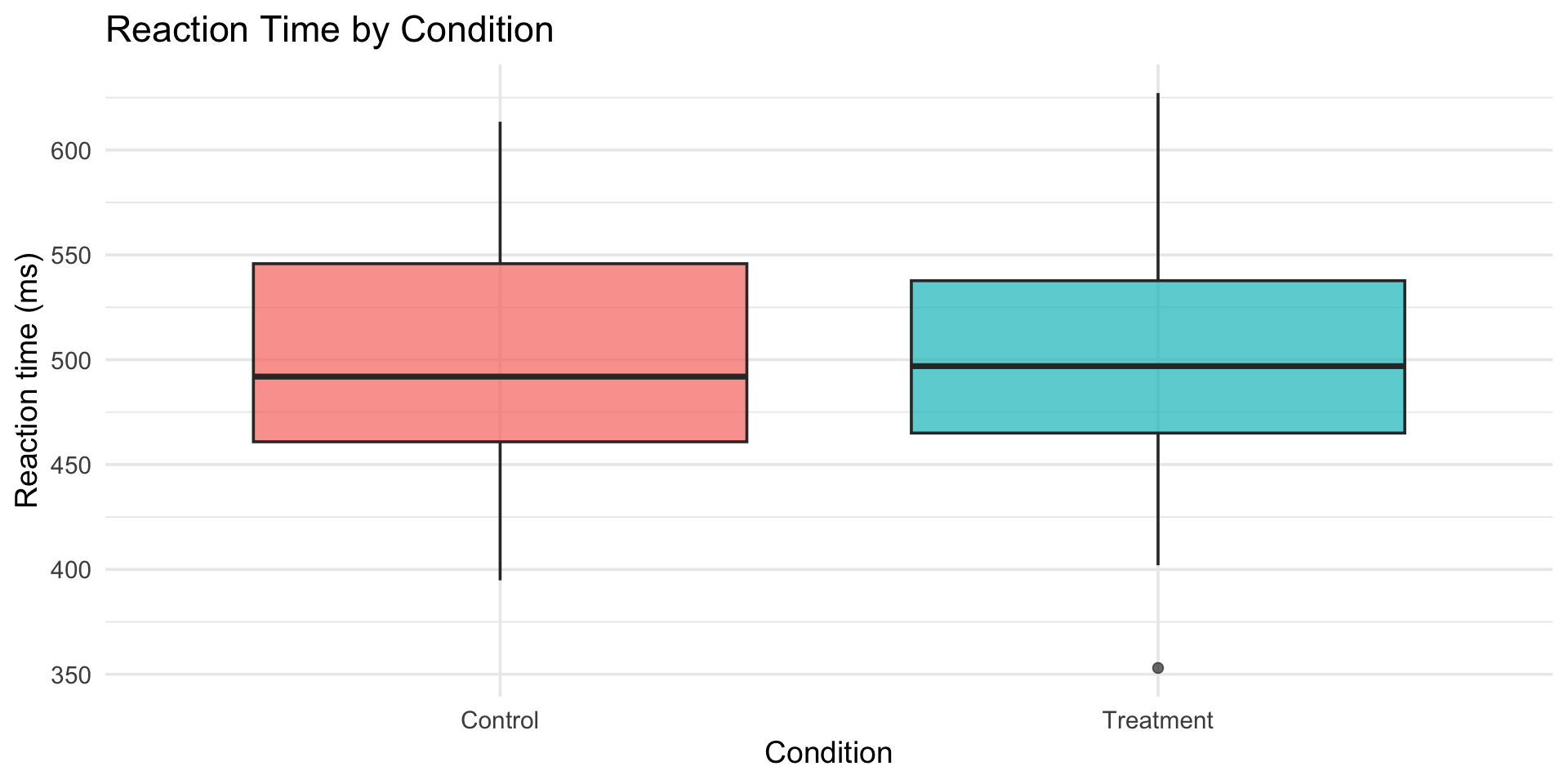
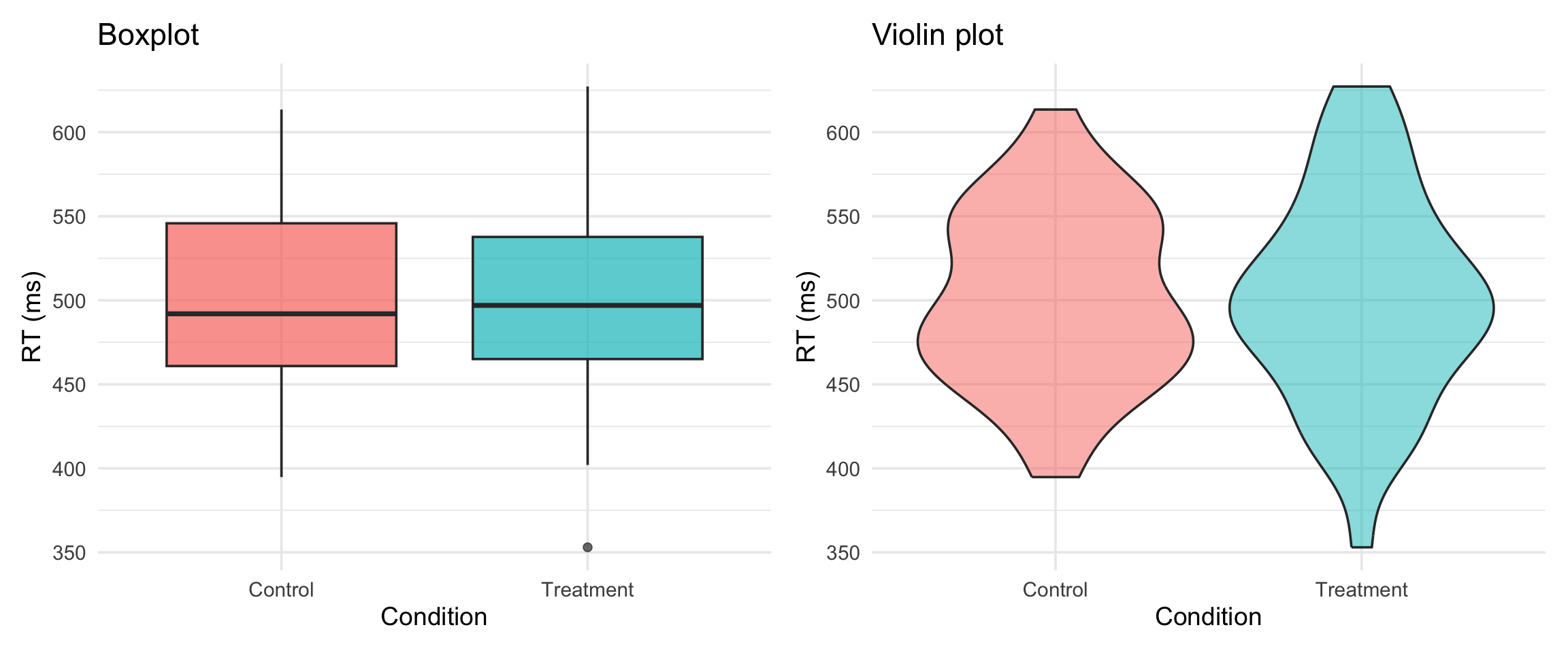
Boxplots comparing reaction time distributions for Control and Treatment conditions. The Control group has a slightly higher median and wider spread than the Treatment group.

boxplot vs violin

Side-by-side comparison of boxplot and violin plot for reaction time by condition. The boxplot shows median, quartiles, and whiskers, while the violin plot reveals the full distribution shape including where data are most concentrated.

Violin shows the full distribution shape. Boxplot shows summary stats. Both have their place.

stat_summary()

The psychology staple: means + error bars

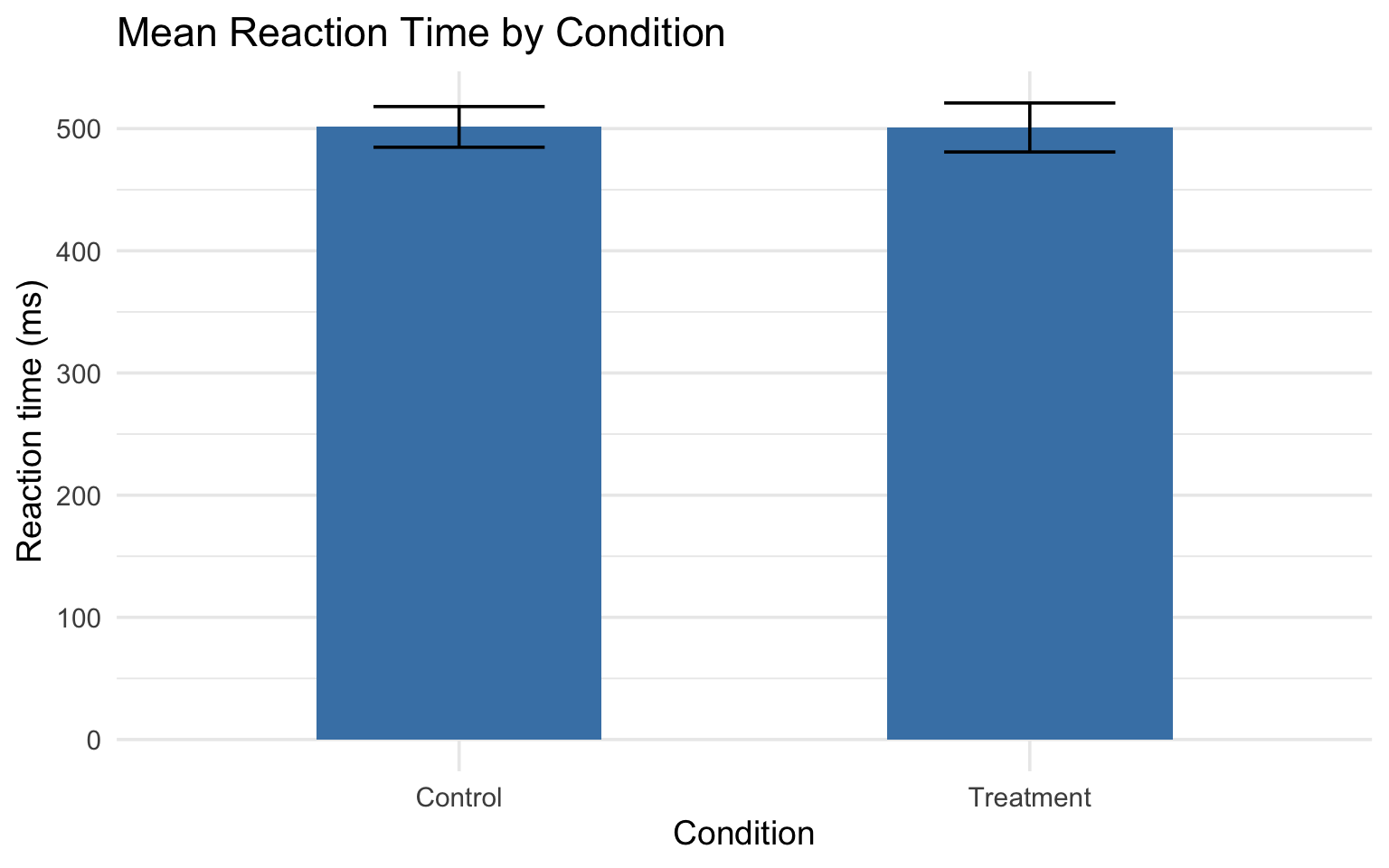
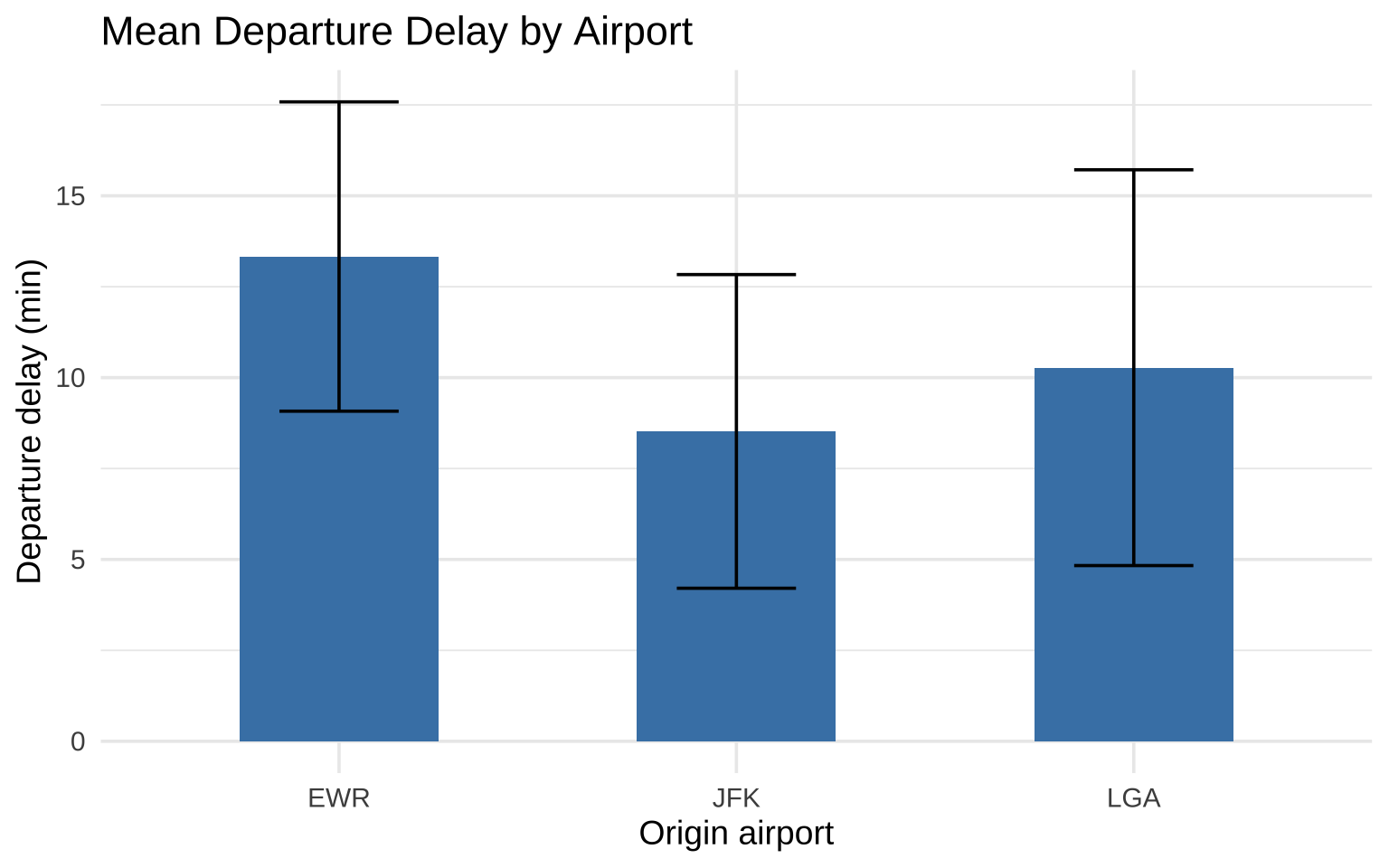
In psych papers, you’ll see this constantly: a bar chart showing group means with error bars. stat_summary() is how you make it.

stat_summary() basics

reaction_data |>
  ggplot(aes(x = condition, y = rt)) +
  stat_summary(
    fun = mean,
    geom = "bar",
    fill = "steelblue", width = 0.5) +
  stat_summary(
    fun.data = mean_cl_normal, 
    geom = "errorbar", 
    width = 0.3) +
  labs(
    title = "Mean Reaction Time by Condition",
    x = "Condition",
    y = "Reaction time (ms)"
  ) +
  theme_minimal(base_size = 14)

stat_summary() basics

Bar chart showing mean reaction time by condition with 95% confidence interval error bars. The Treatment group mean is slightly lower than the Control group, with overlapping error bars.

Breaking down stat_summary()

# The bar (mean)
stat_summary(fun = mean, geom = "bar")

# The error bars (95% confidence interval)
stat_summary(fun.data = mean_cl_normal, geom = "errorbar")
  • fun = the function to calculate (mean, median, etc.)
  • fun.data = a function that returns ymin, y, ymax (like mean_cl_normal)
  • geom = what shape to use to show the result

What are error bars showing?

This matters! Always state it in your figure caption.

Error bar type What it means How to get it
SE (standard error) Precision of the mean mean_se
SD (standard deviation) Spread of the data Write your own
95% CI Confidence interval mean_cl_normal
# SE 
stat_summary(fun.data = mean_se, geom = "errorbar")

# 95% CI (most common in psych)
stat_summary(fun.data = mean_cl_normal, geom = "errorbar")

Why does this matter?

The APA Publication Manual (7th ed.) recommends showing individual data points alongside summary statistics whenever possible.

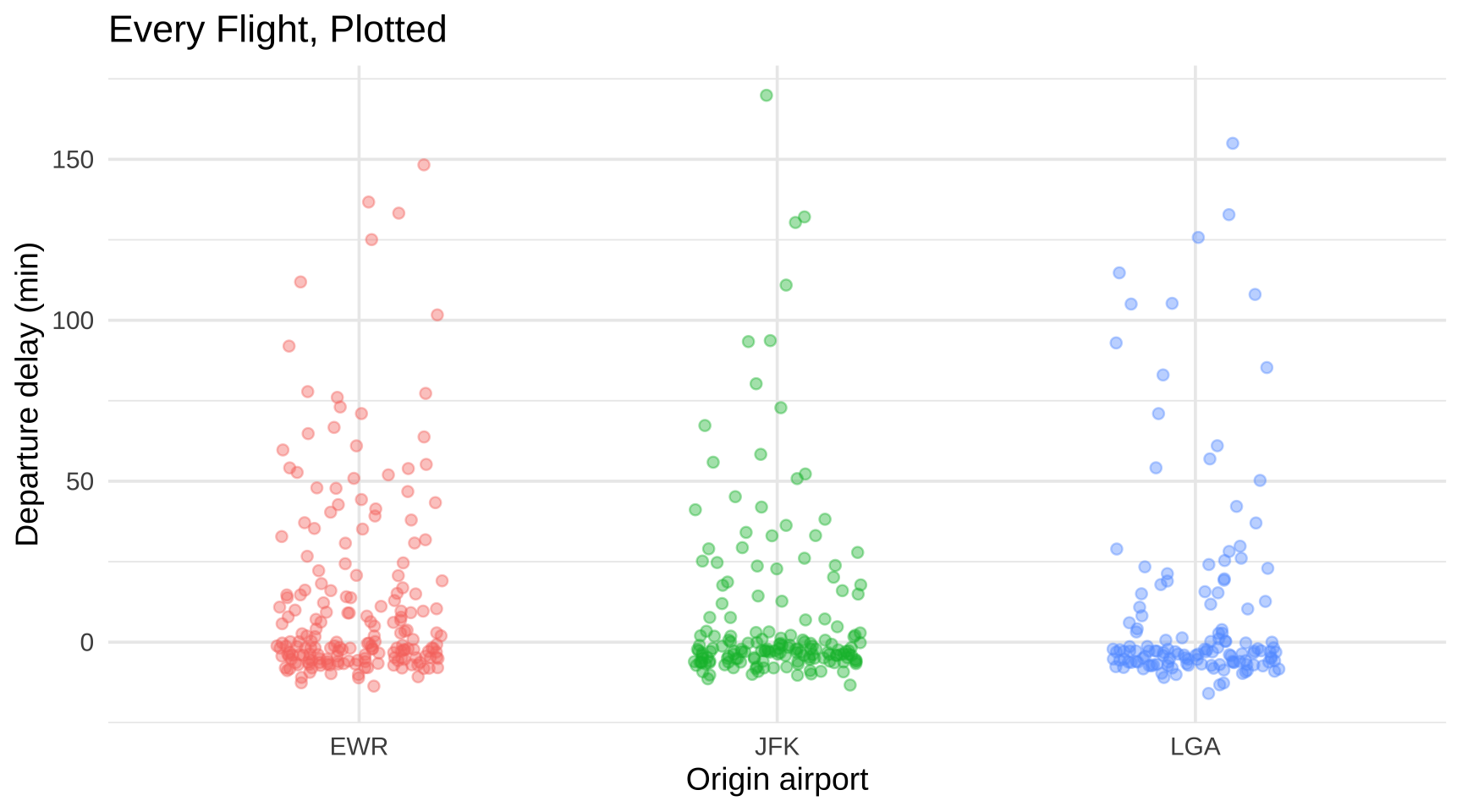
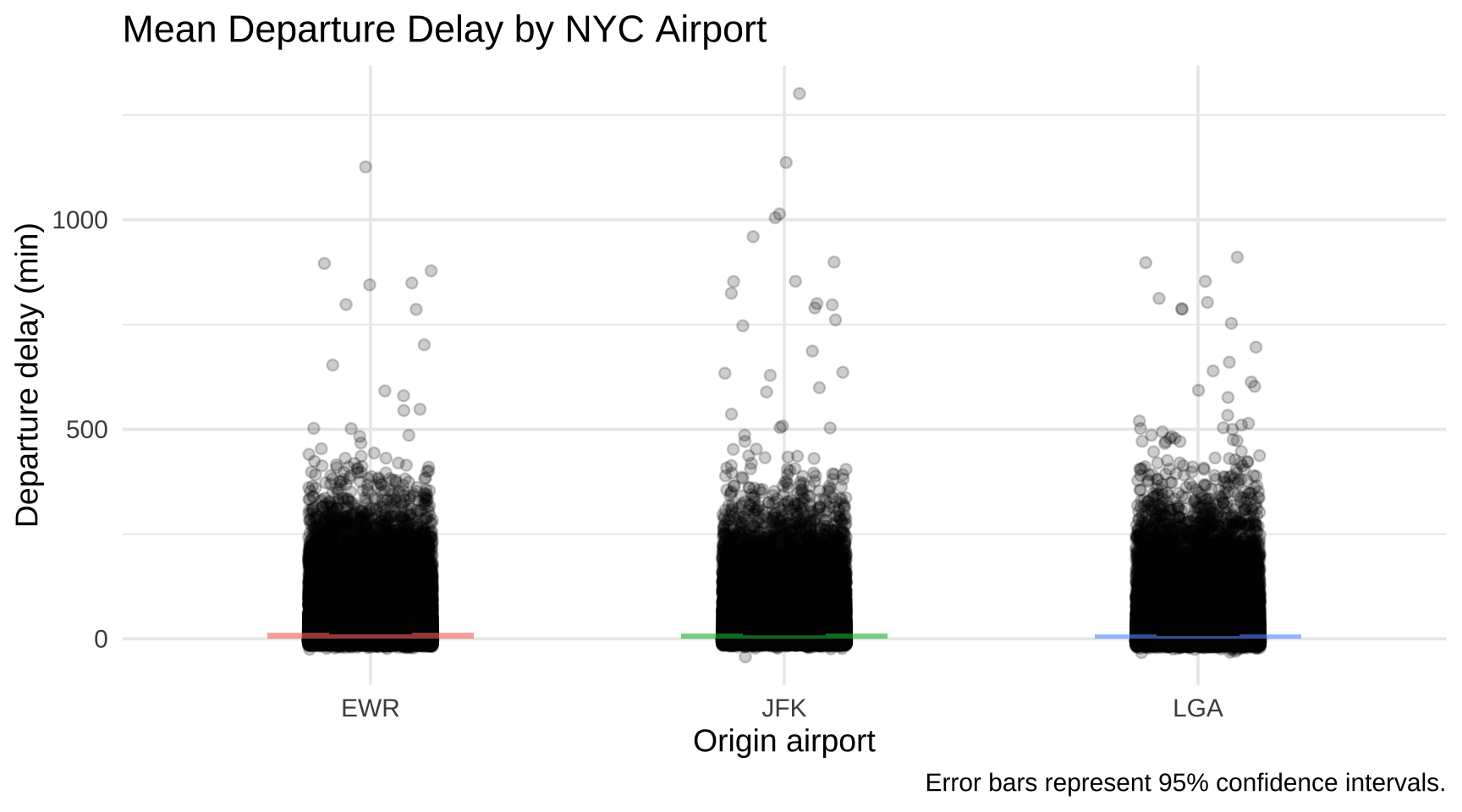
Bar charts with error bars are ubiquitous in psychology — but they hide the shape of the data. Outliers, bimodality, and floor/ceiling effects all disappear behind a rectangle.

Adding individual data points

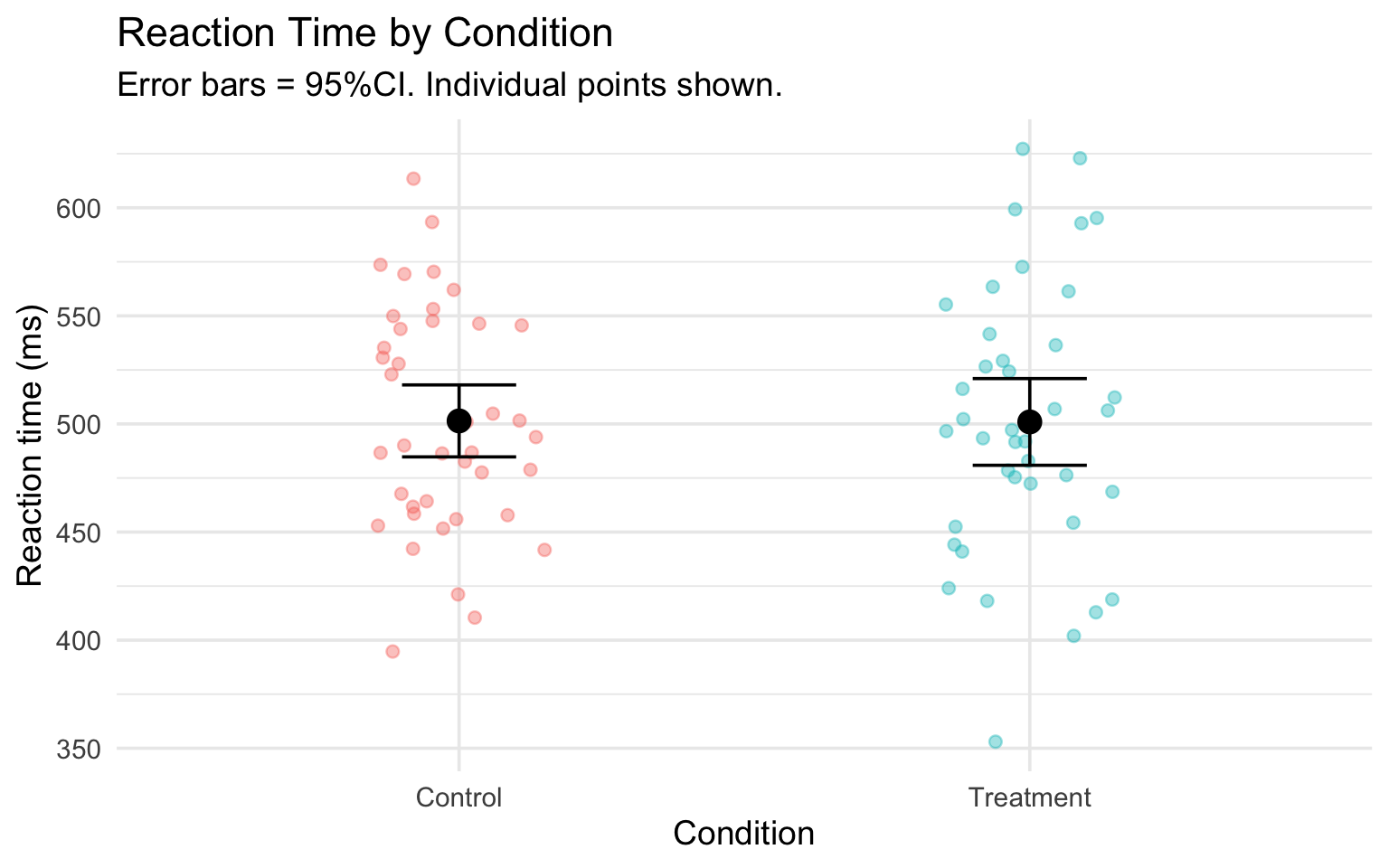
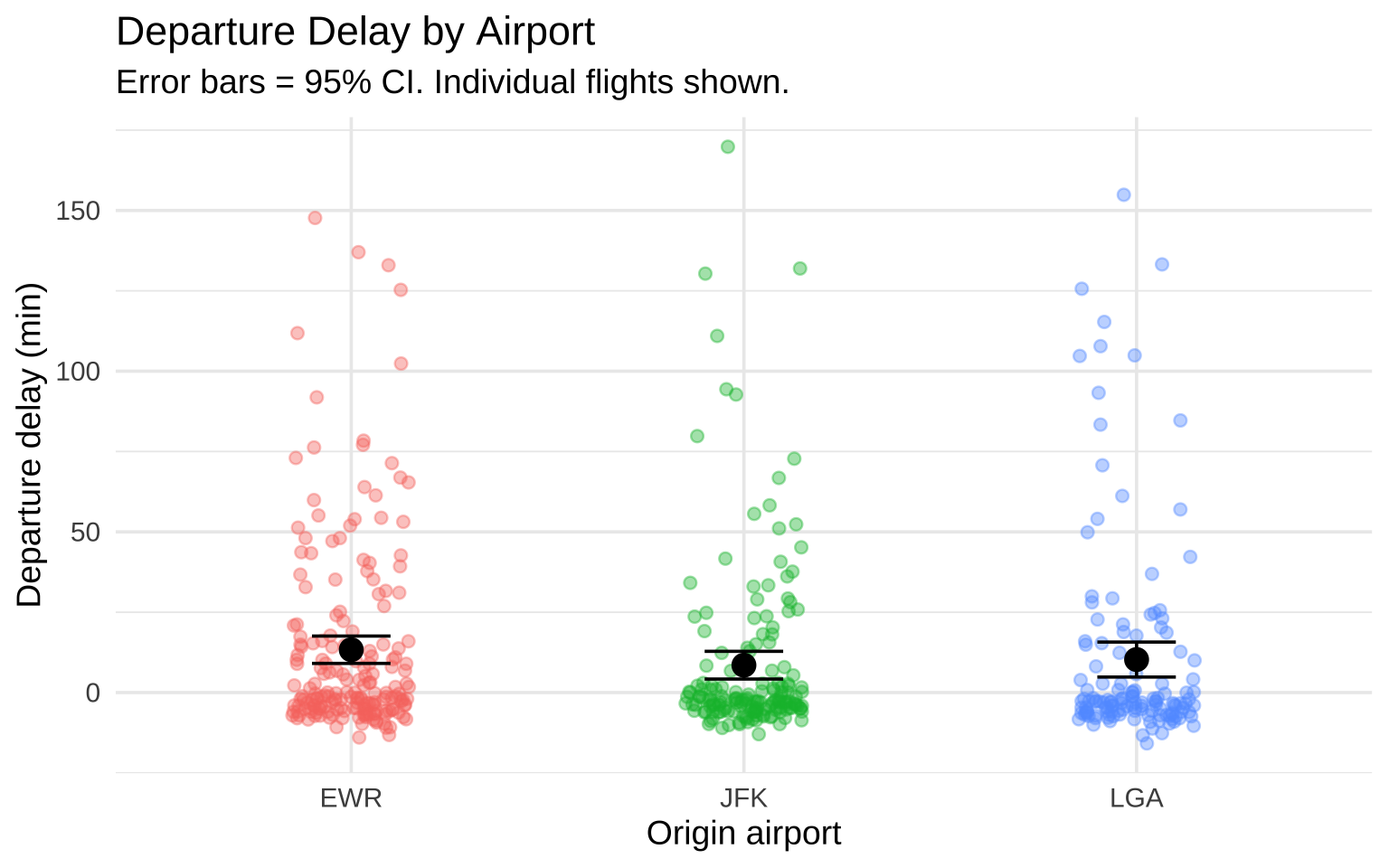
Error bars alone hide the data. Show the points too:

reaction_data |>
  ggplot(aes(x = condition, y = rt, color = condition)) +
  geom_jitter(width = 0.15, alpha = 0.4, size = 2) +
  stat_summary(fun = mean, geom = "point", size = 4, color = "black") +
  stat_summary(fun.data = mean_cl_normal, geom = "errorbar", width = 0.2, color = "black") +
  labs(
    title = "Reaction Time by Condition",
    subtitle = "Error bars = 95%CI. Individual points shown.",
    x = "Condition",
    y = "Reaction time (ms)"
  ) +
  theme_minimal(base_size = 14) +
  theme(legend.position = "none")

Adding individual data points

Dot plot showing individual reaction times as jittered points for each condition, with black dots marking the group means and error bars showing 95% confidence intervals. Individual variation is clearly visible behind the summary statistics.

Pair coding break

Your turn: 10 minutes

Using the reaction_data dataset:

  1. Create a bar chart with error bars showing mean RT by condition
  2. Add individual data points (jittered) behind the bars
  3. Color the bars by condition
  4. Add a caption noting that error bars show the 95% CI.

Tip

You’ll need stat_summary() twice — once for the bar, once for the error bars. Look at the examples from the last few slides.

Before we move on

📤 Upload your code to Canvas for participation credit. Paste what you have into today’s in-class submission — it doesn’t need to work perfectly.

Position & scales

Position adjustments

When geoms overlap, position adjustments fix it:

Position What it does When to use
"dodge" Side by side Grouped bar charts
"stack" Stacked on top Stacked bars
"fill" Stacked to 100% Comparing proportions
"jitter" Random wiggle Overplotted points

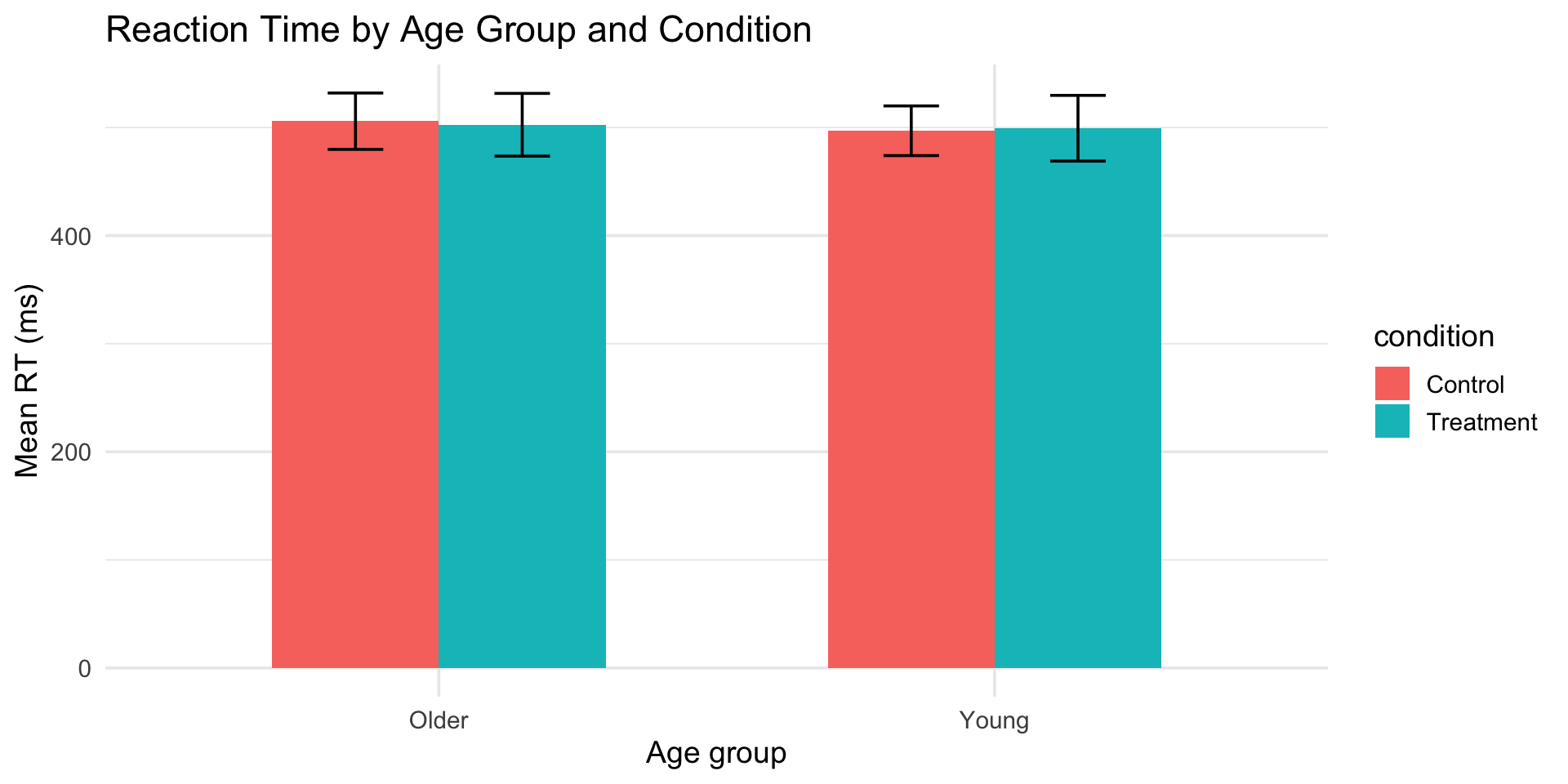
dodge: grouped bar charts

reaction_data |>
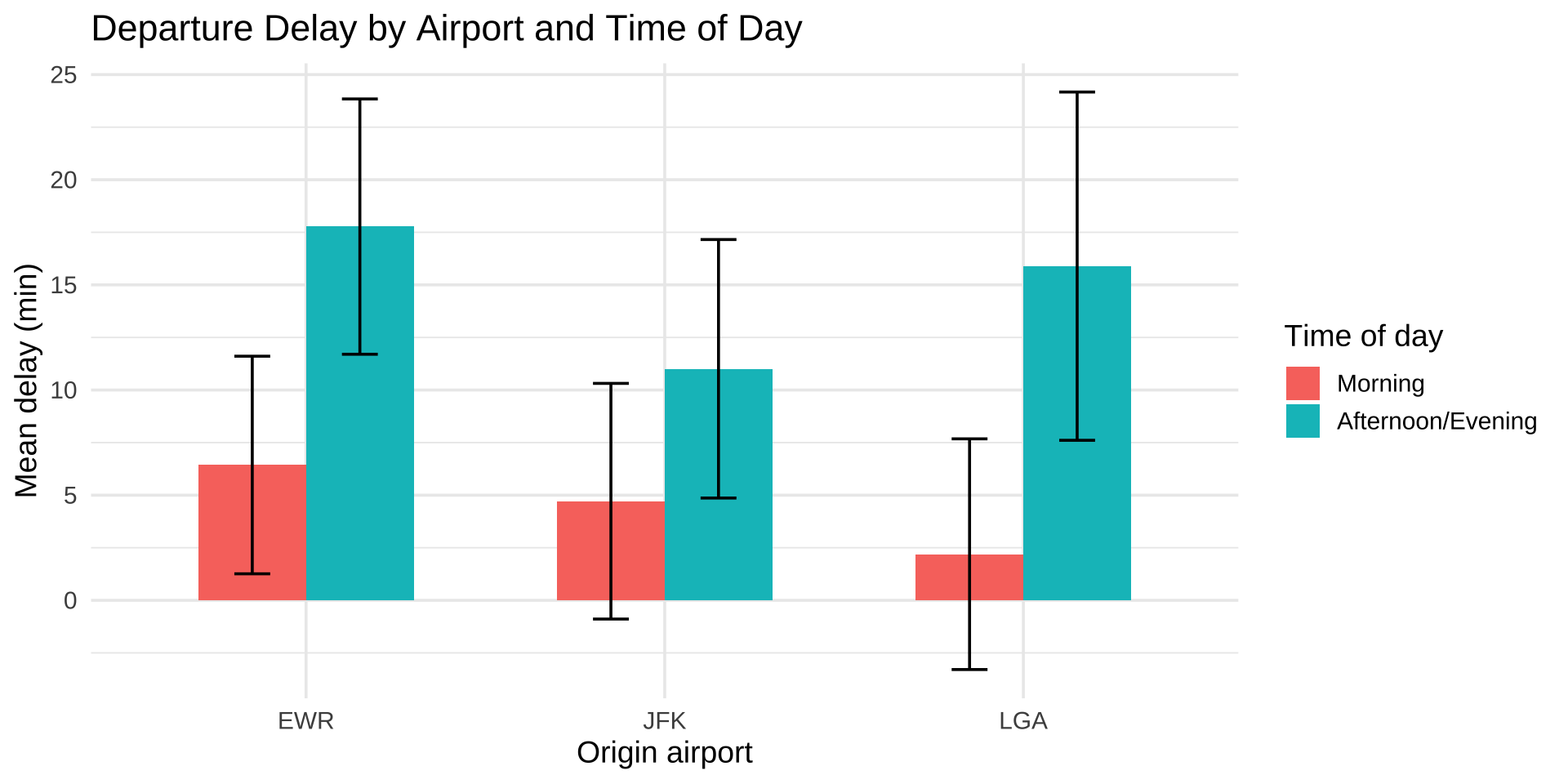
  ggplot(aes(x = age_group, y = rt, fill = condition)) +
  stat_summary(fun = mean, geom = "bar", position = "dodge", width = 0.6) +
  stat_summary(fun.data = mean_cl_normal, geom = "errorbar",
               position = position_dodge(0.6), width = 0.2) +
  labs(
    title = "Reaction Time by Age Group and Condition",
    x = "Age group",
    y = "Mean RT (ms)"
  ) +
  theme_minimal(base_size = 14)

dodge: grouped bar charts

Grouped bar chart showing mean reaction time by age group and condition with dodged bars and error bars. Control and Treatment bars are side by side within each age group, allowing direct comparison across both factors.

stack and fill

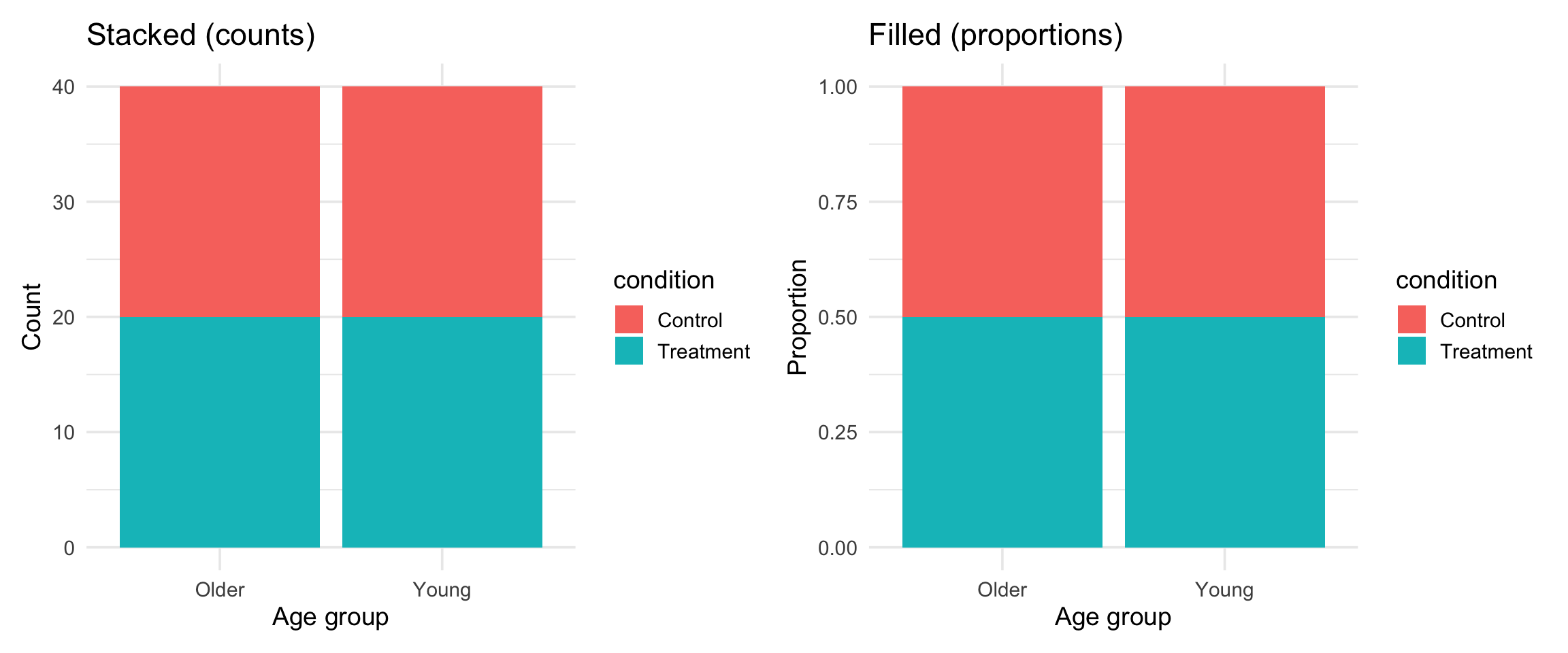
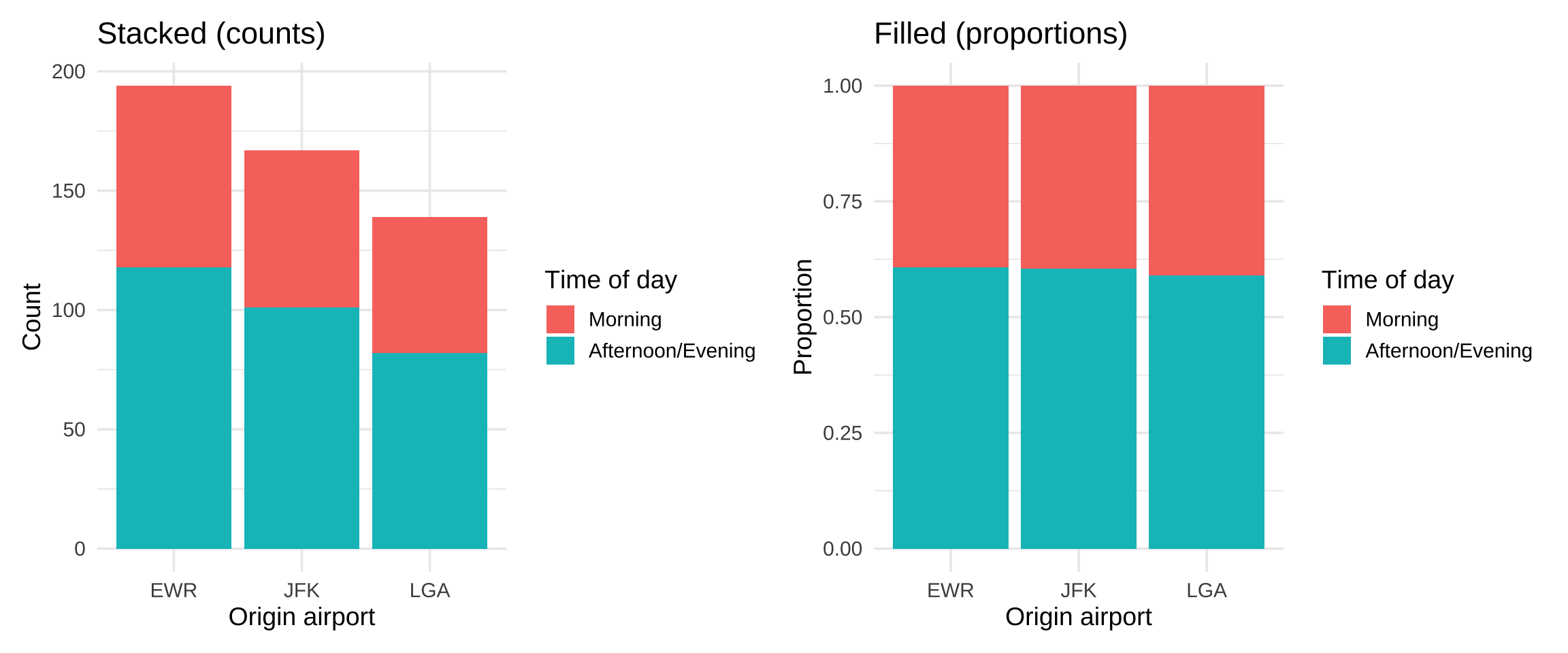
Side-by-side comparison of stacked and filled bar charts. The stacked chart shows raw counts of Control and Treatment observations by age group, while the filled chart normalizes each bar to 100% to compare proportions directly.

Scales: controlling axes and colors

Scales translate data values into visual properties:

# Control axis range
scale_y_continuous(limits = c(0, 800))

# Control axis breaks (tick marks)
scale_x_continuous(breaks = seq(400, 700, by = 50))

# Set specific colors
scale_fill_manual(values = c("Control" = "lightblue", "Treatment" = "coral"))

# Use a colorblind-friendly palette
scale_fill_viridis_d()

scale_fill_manual()

reaction_data |>
  ggplot(aes(x = condition, y = rt, fill = condition)) +
  geom_boxplot(alpha = 0.7) +
  scale_fill_manual(values = c("Control" = "#3498db", "Treatment" = "#e74c3c")) +
  labs(title = "Custom colors", x = "Condition", y = "RT (ms)") +
  theme_minimal(base_size = 14) +
  theme(legend.position = "none")

Use a website like HTML color codes to find the appropriate HEX code for your color.

scale_fill_manual()

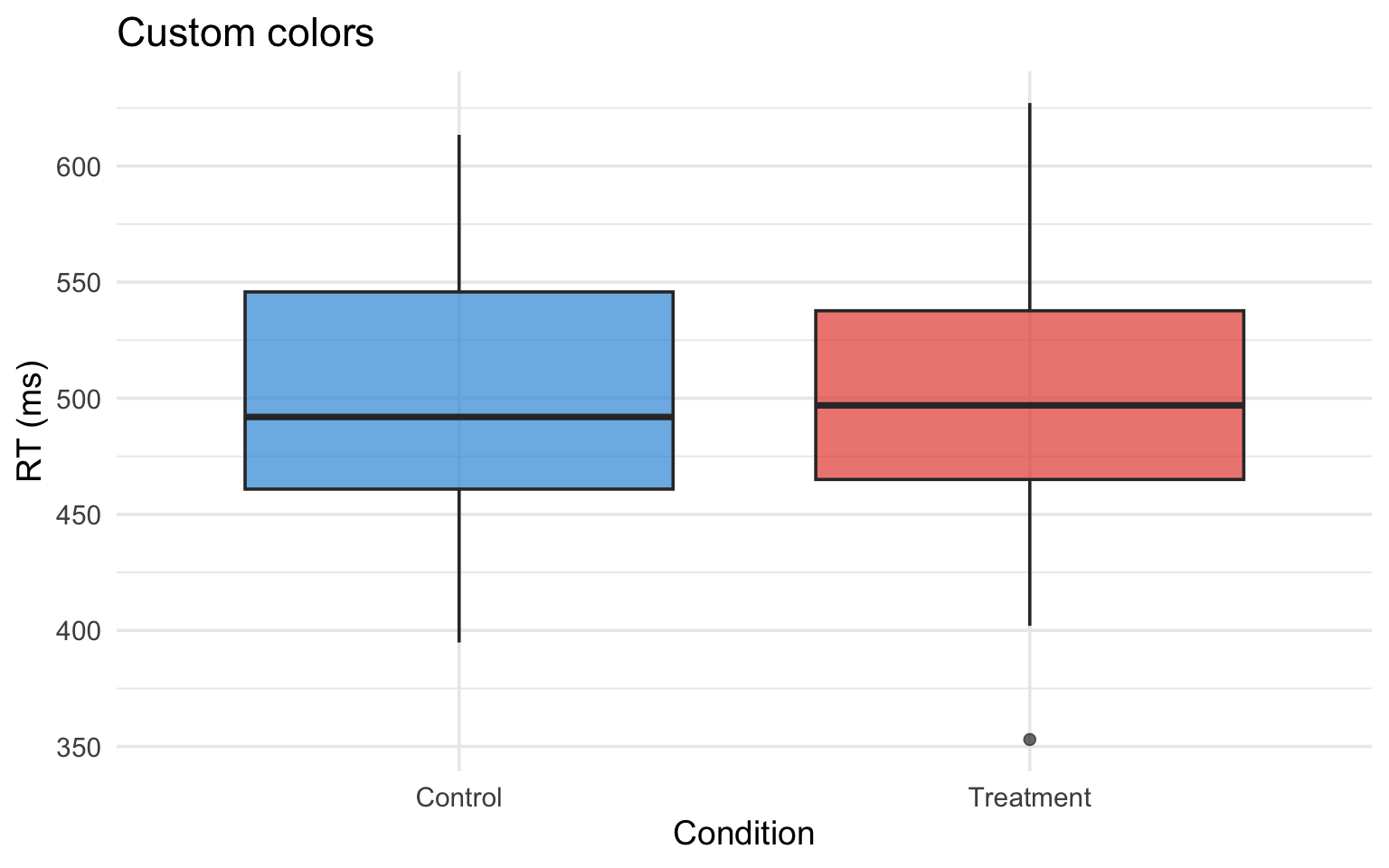
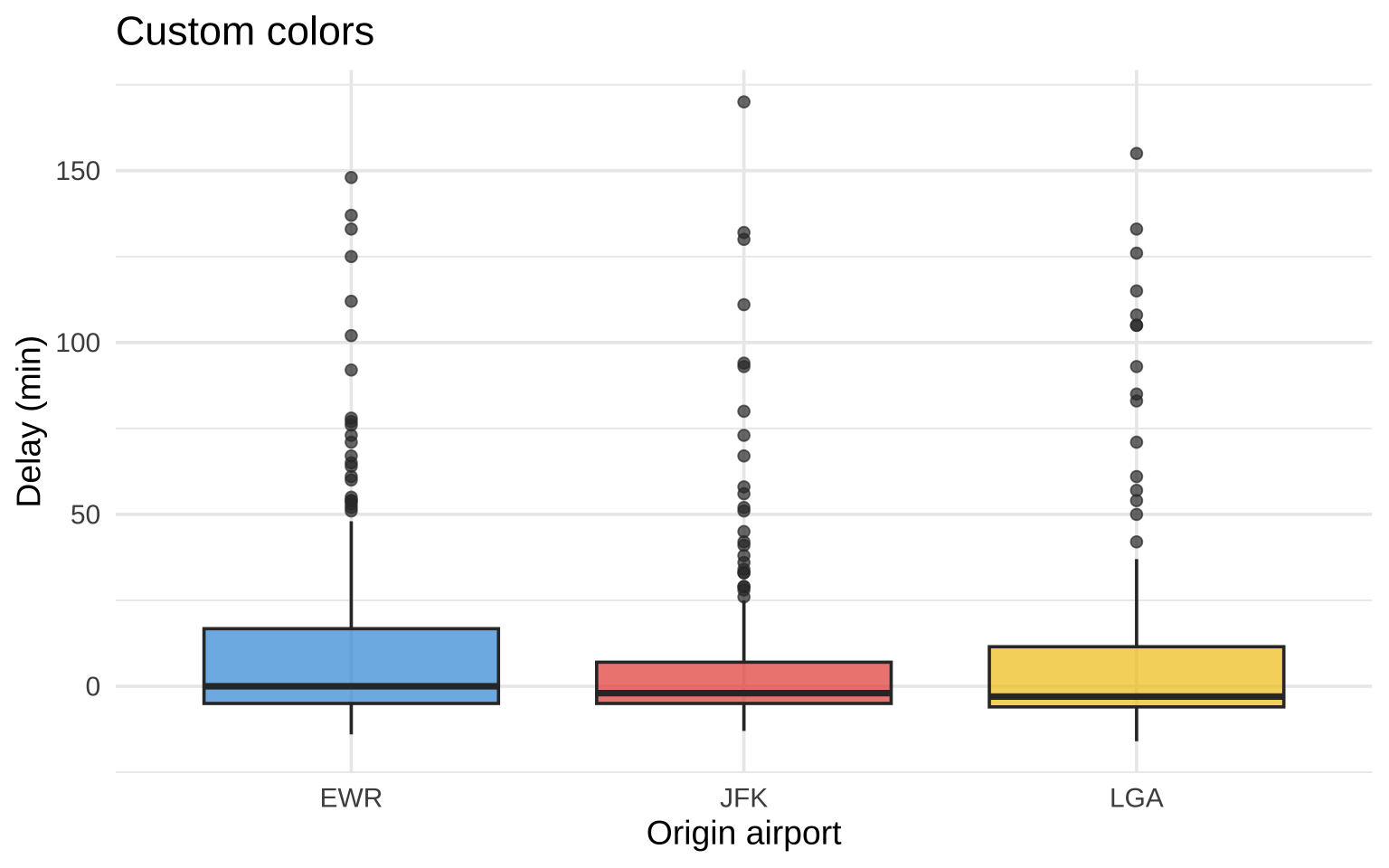
Boxplots of reaction time by condition using custom colors: blue for Control and red for Treatment, demonstrating how scale_fill_manual() applies specific hex color codes to groups.

Coordinate systems

# Flip x and y (great for long category labels)
coord_flip()

# Zoom in without dropping data
coord_cartesian(ylim = c(400, 600))
# vs
scale_y_continuous(limits = c(400, 600))  # This DROPS data outside the range!

coord_flip() in action

reaction_data |>
  ggplot(aes(y = condition, x = rt, fill = condition)) +
  geom_boxplot(alpha = 0.7) +
  labs(title = "Flipped axes — better for category labels", y = "Condition", x = "RT (ms)") +
  theme_minimal(base_size = 14) +
  theme(legend.position = "none")

coord_flip() in action

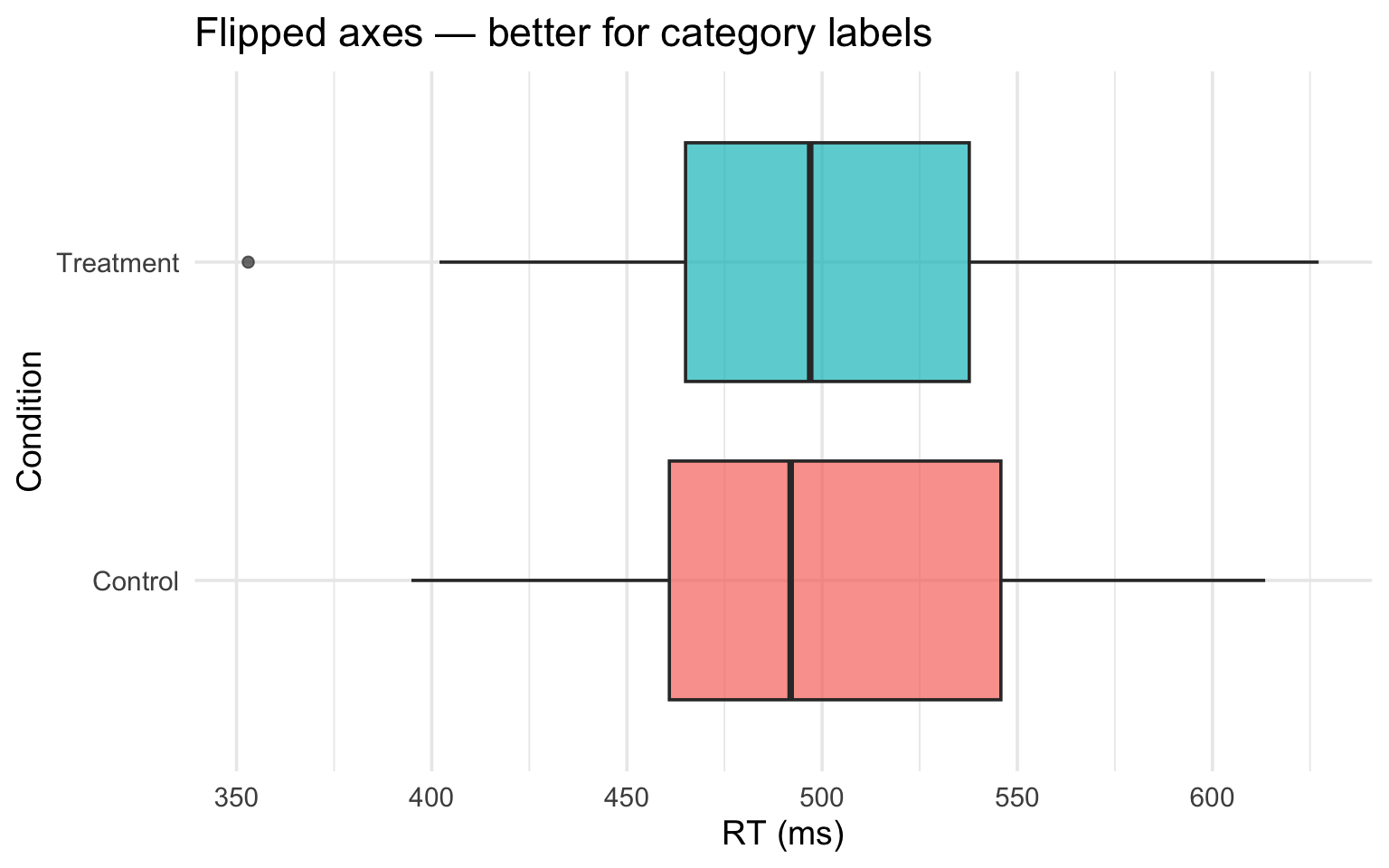
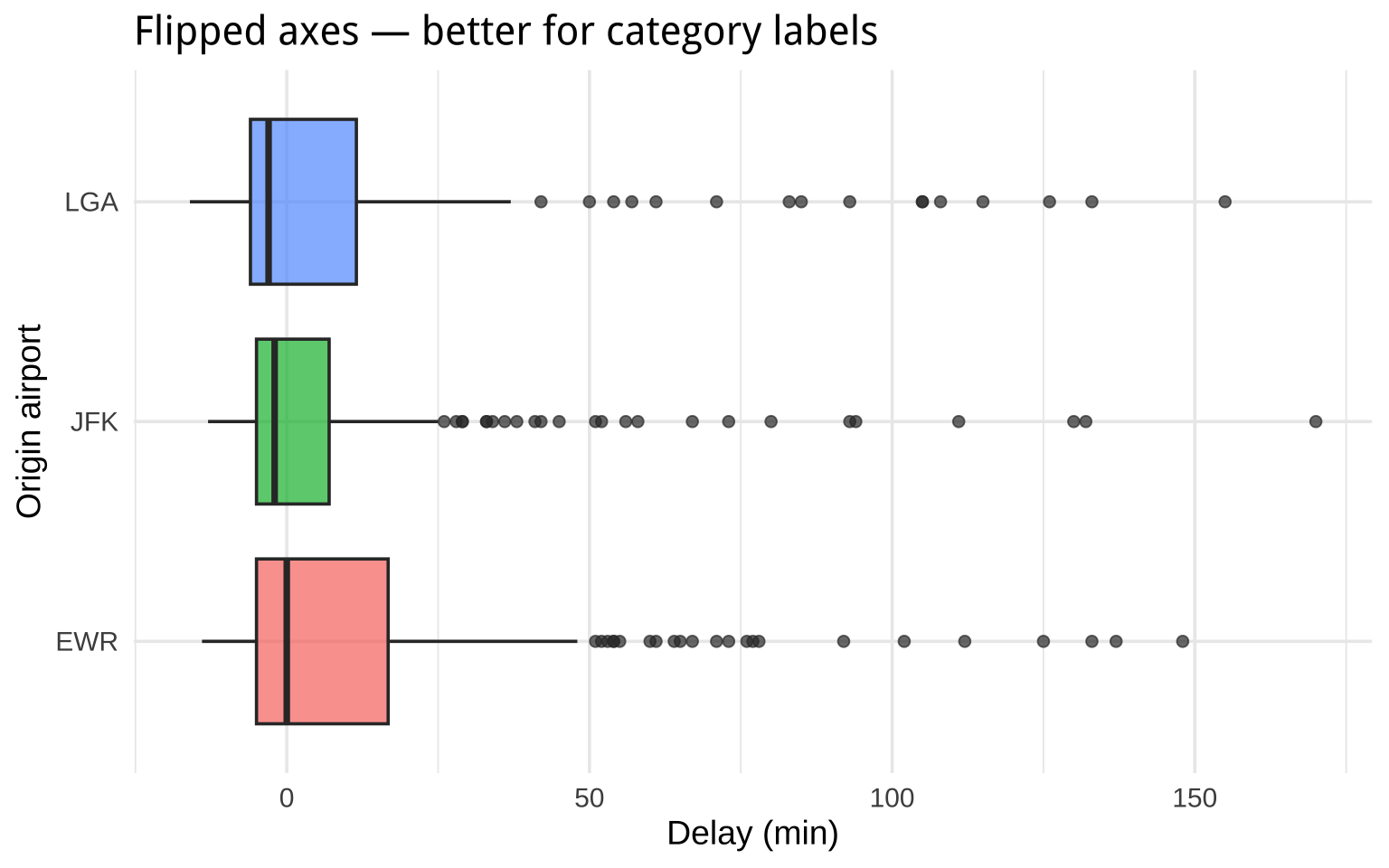
Horizontal boxplots of reaction time by condition, with categories on the y-axis and reaction time on the x-axis, demonstrating how flipped axes improve readability for categorical labels.

Putting it together

A polished psychology figure

reaction_data |>
  ggplot(aes(x = condition, y = rt, fill = condition, color = condition)) +
  geom_jitter(width = 0.2, alpha = 0.35, size = 2) +
  geom_boxplot(alpha = 0.5, width = 0.4, outlier.shape = NA) +
  stat_summary(fun = mean, geom = "point", shape = 18, size = 5, color = "black") +
  scale_fill_manual(values = c("Control" = "#3498db", "Treatment" = "#e74c3c")) +
  scale_color_manual(values = c("Control" = "#2980b9", "Treatment" = "#c0392b")) +
  labs(
    title = "Treatment Reduces Reaction Time",
    subtitle = "Individual data points, box summaries, and mean (diamond) shown",
    x = "Condition",
    y = "Reaction time (ms)",
    caption = "N = 40 per condition. Diamond = mean."
  ) +
  theme_minimal(base_size = 14) +
  theme(legend.position = "none")

A polished psychology figure

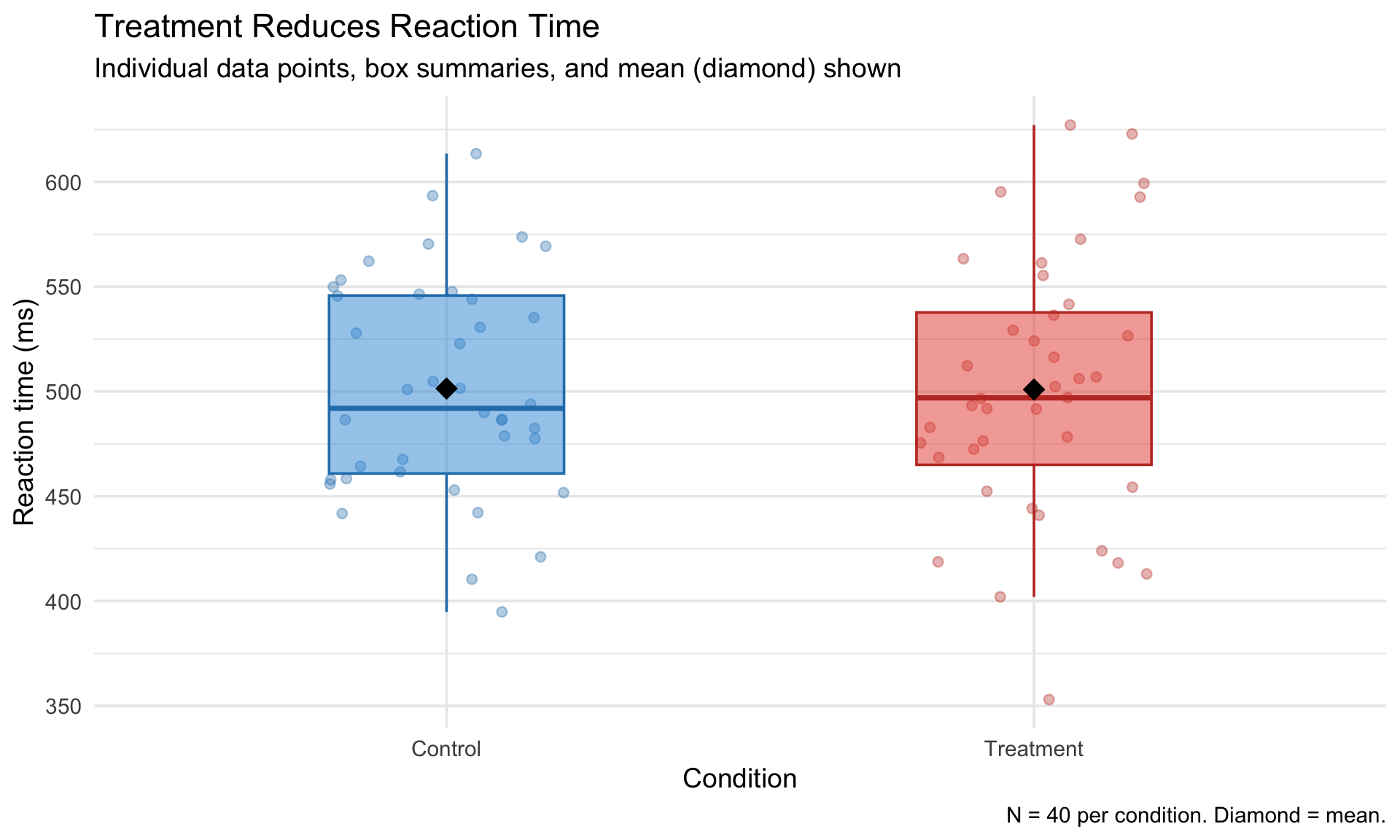
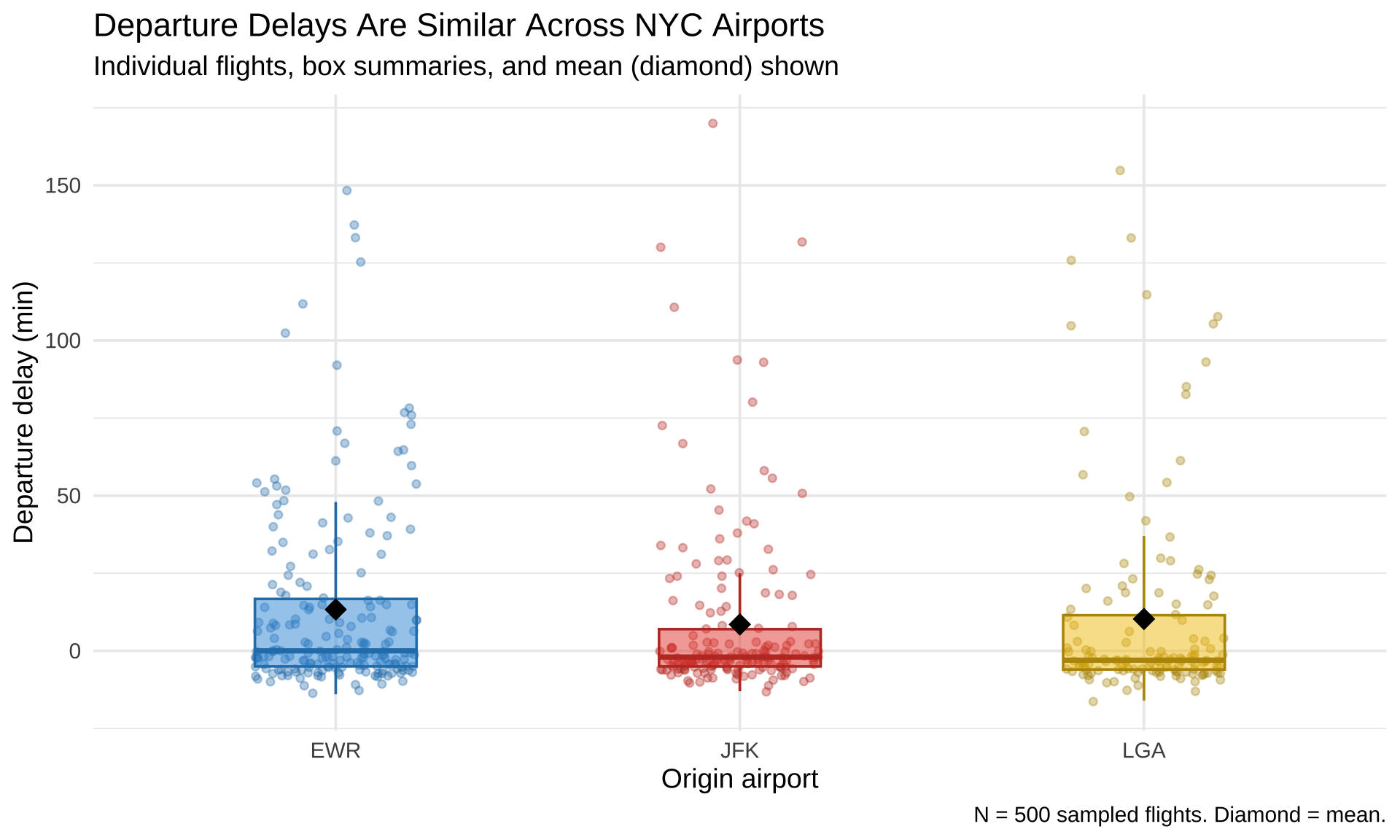
Polished figure combining jittered individual data points, boxplots, and diamond-shaped mean markers for reaction time by condition. Uses custom blue and red colors, informative title and subtitle, and a caption noting sample size and mean indicator.

Get a head start

Assignment 4 preview

Assignment 4 will ask you to create “bad” and “good” versions of figures. Start experimenting:

  1. Take any plot from today and make it deliberately bad — wrong geom, missing labels, confusing colors
  2. Then fix it. What did you change and why?
  3. Try creating the same data with three different geoms. Which one communicates best?

Wrapping up

Today’s toolkit

Tool What it does
geom_histogram() Distribution of one continuous variable
geom_density() Smooth distribution estimate
geom_boxplot() Summary of continuous by categorical
geom_violin() Full distribution by categorical
stat_summary() Calculate and display summary stats
position = "dodge" Side-by-side grouped plots
scale_fill_manual() Custom colors
coord_flip() Swap axes

Before next class

📖 Read:

  • Supplementary: Visual perception principles (will be posted)
  • Optional: Knaflic, Storytelling with Data, Ch 1–3

Practice:

  • Create a bar chart with error bars for a dataset of your choice
  • Try boxplot vs violin on the same data
  • Experiment with coord_flip() and scale_fill_manual()

Key takeaways

  1. Match your geom to your data — the wrong choice misleads
  2. stat_summary() is powerful — means, error bars, custom functions
  3. Position adjustments handle overlap (dodge, stack, fill, jitter)
  4. Scales control axes, colors, and legends
  5. coord_cartesian() zooms; scale limits drop data — know the difference

The one thing to remember

The difference between a chart and a figure is intention — every layer should earn its place.

Next time: Perception & Design